
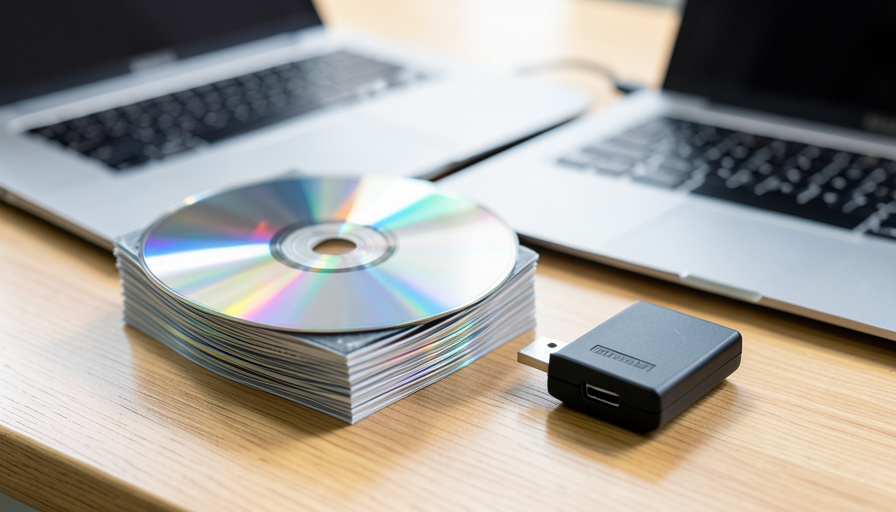
The music you bought on CD is sitting on a format that is quietly dying, in a drive your next laptop will not have. Ripping it is how you actually keep what you paid for.
Discs rot. Not all at once, but the aluminum layer in a CD degrades over years, and a disc that plays fine today can develop unreadable patches a decade from now. Add that modern laptops ship without optical drives, and streaming services can drop an album overnight, and the case for ripping your collection to files gets strong. The good news is that it is a one-evening project with free software, and once done, your music is yours in a form that will outlive the discs.
Here is how to rip and back up a CD collection properly: what you need, which format to choose, the software that gets it right, and how to deal with the awkward discs.
In brief
Rip each disc once to FLAC, a lossless format, as your master archive, then make smaller MP3 or AAC copies for your phone from those files. On Windows, Exact Audio Copy is the free gold standard; dBpoweramp is the easy paid option and works on Mac too; fre:ac is a free cross-platform pick. You will likely need an external USB optical drive. Whatever you do, keep at least two backups in two places, because the entire point is to outlast the discs.
Table of Contents
What you need to start
Three things. First, a way to read discs, which for most people now means a cheap external USB optical drive, since laptops stopped including them years ago. Second, ripping software, covered below. Third, storage, and more than you would guess: a lossless FLAC rip of one album runs roughly 250 to 400 MB, so a few hundred CDs can mean well over 100 GB. An external drive or a chunk of cloud storage handles it easily.
Pick your format: FLAC or MP3
This is the one decision that matters, so make it deliberately. FLAC is lossless, meaning it preserves the exact audio from the disc, at the cost of larger files. MP3 and AAC are lossy, throwing away data you mostly cannot hear to make much smaller files that play anywhere.
My recommendation is not to choose. Rip once to FLAC as your permanent archive, since that captures everything and you never have to re-rip. Then generate MP3 or AAC copies from the FLAC files for your phone and car, where size matters more than the last sliver of fidelity. Do it in the wrong order, ripping straight to MP3, and you have thrown away quality you can never get back without feeding the discs through again.
The software worth using
A few tools do this well, and the right one depends on your platform and patience:
| Software | Platform | Cost | Best for |
|---|---|---|---|
| Exact Audio Copy | Windows | Free | The most accurate rips, the audiophile standard |
| dBpoweramp | Windows, Mac | About $48 | Accuracy with a much friendlier interface |
| fre:ac | Windows, Mac, Linux | Free | A free, open-source, cross-platform option |
| Apple Music / iTunes | Windows, Mac | Free | The simplest path if you already live in Apple’s world |
Both Exact Audio Copy and dBpoweramp use a system called AccurateRip, which checks your rip against a database of the same disc ripped by other people and flags any track that does not match. That verification is the difference between a clean archive and one with silent glitches you notice years later. For a serious backup, it is worth having. TechRadar keeps a current roundup of CD rippers if you want to compare more options, and fre:ac is a safe free starting point.
How to actually rip a disc
The flow is similar across programs:
- Insert the disc and let the software look up the album, track names, and artwork automatically.
- Choose your output format and quality, FLAC for the archive.
- Turn on AccurateRip or a secure mode if your software offers it.
- Rip, then check that every track verified rather than erroring out.
- Confirm the tags and cover art are correct before moving to the next disc.
Once you have a rhythm, a disc takes a few minutes, and you can stack them up while doing something else.
Copy-protected and scratched discs
Some albums from the early 2000s shipped with copy protection meant to stop exactly what you are doing, and a few can choke a rip or refuse to load on a computer at all. If a disc resists, try a different optical drive, since results vary a lot between drives, and use a secure ripping mode that reads more carefully. Scratched discs respond to a gentle clean and a slower, error-correcting rip. Most discs, copy protection or not, come off fine with a decent drive and patient software.
Back it up properly, or skip the whole thing
Here is the part people cut corners on, which defeats the purpose. A single copy on one drive is not a backup, it is a second thing that can fail. Keep at least two copies in two different places, and ideally one of them off-site or in the cloud, so a dead drive or a spilled coffee does not erase the evening you spent ripping. This is the same lesson behind the broader fight over digital ownership: the safest copy of the music you own is the one you control, stored somewhere you trust.
A quick word on the law
Making personal copies of discs you actually own is permitted in many countries, but the rules genuinely vary, and some places are stricter than you would expect. The clear line everywhere is distribution: ripping your own CD for your own devices is a different thing from sharing the files. Keep your rips to yourself and you stay on the safe side of that line.
Frequently asked questions
What is the best software to rip CDs?
On Windows, Exact Audio Copy is the free, highly accurate standard. dBpoweramp is a friendlier paid option that also runs on Mac, and fre:ac is a solid free cross-platform choice. Apple Music or iTunes is the simplest if you already use them.
Should I rip to FLAC or MP3?
Rip to FLAC for your archive because it is lossless and you never have to re-rip. Make MP3 or AAC copies from those FLAC files for phones and cars, where smaller files matter more than perfect fidelity.
Do I need a special drive to rip CDs?
Just an optical drive, which for most modern laptops means an inexpensive external USB one. A good drive also helps with scratched or copy-protected discs, since read quality varies between models.
Can I rip copy-protected CDs?
Often yes. Some early-2000s discs resist, but switching to a different drive and using a secure ripping mode usually works. A stubborn disc is more often a drive or scratch problem than true copy protection.
Is ripping CDs legal?
Copying discs you own for personal use is allowed in many countries, though the rules vary by location. Distributing the files is a separate matter and generally is not allowed, so keep your rips private.
Final word
Ripping a CD collection is one of those chores that feels optional right up until a disc will not read or a drive dies. Do it once, properly: archive to FLAC, verify the rips, tag them well, and keep two backups in two places. The discs can rot in a box after that, because the music will already be somewhere safer. For more practical tech projects, browse The Other Stream’s Tech section.