

A Microsoft Authenticator new phone checklist: why work and school accounts don’t come back from a backup, the safe order of steps, and the 2026 and 2027 changes to know before you trade in your old device.
In September 2026, a student on Reddit described a loop many people hit after a broken screen. They moved to a new phone, installed Microsoft Authenticator and signed in to their school account. Then the codes stopped arriving on either phone, and every sign-in attempt offered another code they couldn’t get. Their coursework, assignments and announcements were all behind that login. The replies were blunt: restoring from backup doesn’t work for work or school accounts, and multifactor sign-in has to be set up on the new phone before the old one goes. If you’re moving Microsoft Authenticator to a new phone, that order is everything.
Quick Answer
Keep your old phone until the new one works. Back up Microsoft Authenticator on the old phone, restore it on a new phone of the same type, then open each work or school account and sign in again. If your organization asks, add the new phone at your Security info page using the old phone to approve. Test your most-used work sign-ins, remove the old device and only then wipe the old phone. If it’s already gone, your IT help desk can reset your registration.
Table of Contents
Why work accounts don’t come back from a backup
Microsoft’s guide to transferring Authenticator to a new phone is clear about it. For work or school accounts, backup and restore only brings back the account name so you can recognize it. To finish setup, you open the account and sign in again, and you may see red text that says “Sign in to add your account.” Microsoft also says to keep your old phone until you confirm you can sign in to the accounts and resources you use most often.

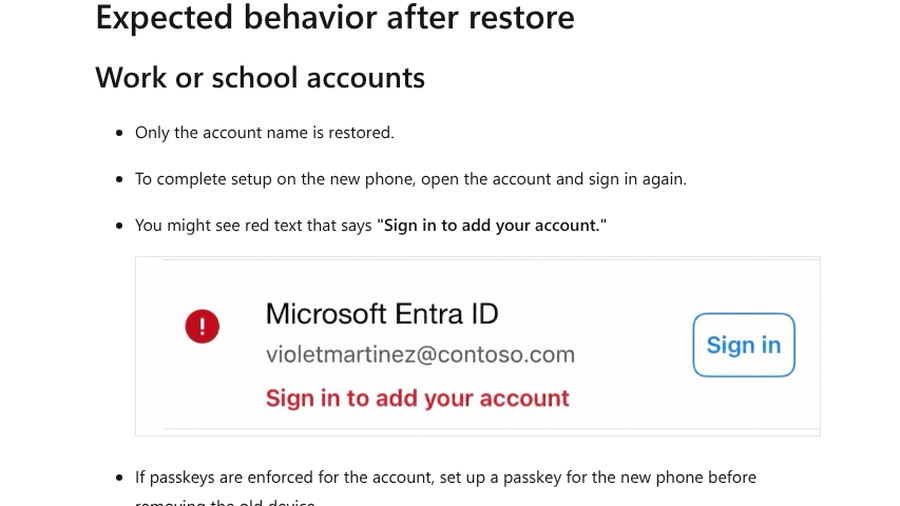
Phone-cloning tools don’t get around this either. In December 2025, an IT admin on Reddit moved an Android phone with Samsung’s Smart Switch, which copied the Authenticator app but none of its codes. Commenters explained that the sign-in keys are tied to the physical device, so a new phone has to be registered and the old one removed.
What a Microsoft Authenticator backup does restore
The backup still matters for everything else. According to Microsoft’s page on how to back up your accounts in Microsoft Authenticator, it restores the six-digit codes for third-party accounts such as Amazon, Facebook and Gmail. Personal Microsoft accounts that only use codes come back too. Personal accounts that use passwordless sign-in restore as a name only, so you sign in again.
- On iPhone: backup runs through iCloud. Turn on iCloud Drive, iCloud Keychain and iCloud Backup, then turn on Authenticator in your Saved to iCloud list.
- On Android: open Authenticator’s Settings, turn on Cloud Backup and choose a personal Microsoft account to store it.
- Same type only: Microsoft says an iPhone backup can’t be restored on Android, and vice versa.
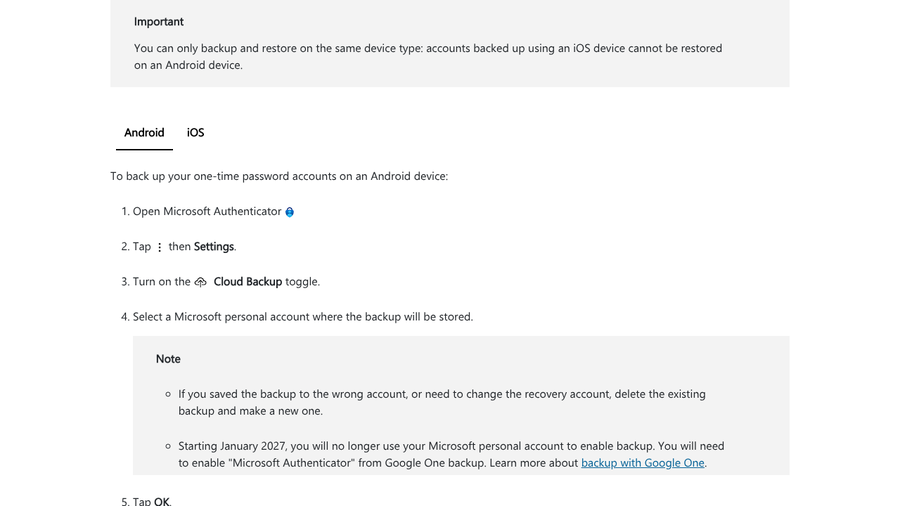
Android backups are also changing. Microsoft’s page says that starting January 2027, you’ll no longer use a personal Microsoft account to enable backup. Instead, you’ll turn on Microsoft Authenticator in Google One backup. If you switch Android phones before then, the current method still applies.
Cross-platform moves are the hardest. In September 2026, a Reddit user who went from iPhone to Android said none of their accounts appeared in the new app. They ended up turning two-factor sign-in off and back on for each account to register the new phone.
How to move Microsoft Authenticator to a new phone, step by step
- Keep the old phone working. Don’t wipe, trade in or recycle it yet. It’s your approval device for the next steps.
- Back up on the old phone. Use iCloud on iPhone or Cloud Backup on Android, as described above.
- Restore on the new phone. Install Authenticator and choose to restore from backup, using the same iCloud or Microsoft account.
- Sign in to each work or school account. Open every account that shows “Sign in to add your account” and complete the sign-in.
- Add the new phone if you’re asked. Go to your organization’s Security info page at aka.ms/mysecurityinfo, choose Add sign-in method and select Microsoft Authenticator. Approve the change with the old phone.
- Set up passkeys again. Microsoft says a passkey saved only to the old phone has to be created again on the new one before you remove the old device.
- Test real sign-ins. Open a private browser window and sign in to email, Teams or your school portal. Approve on the new phone.
- Remove the old phone. Delete it from Security info, then reset the old device.
If your organization doesn’t allow self-service passkey setup, Microsoft says to contact your admin or help desk for the approved process. The same goes for any sign-in method your Security info page won’t let you add.
If you already wiped or lost the old phone
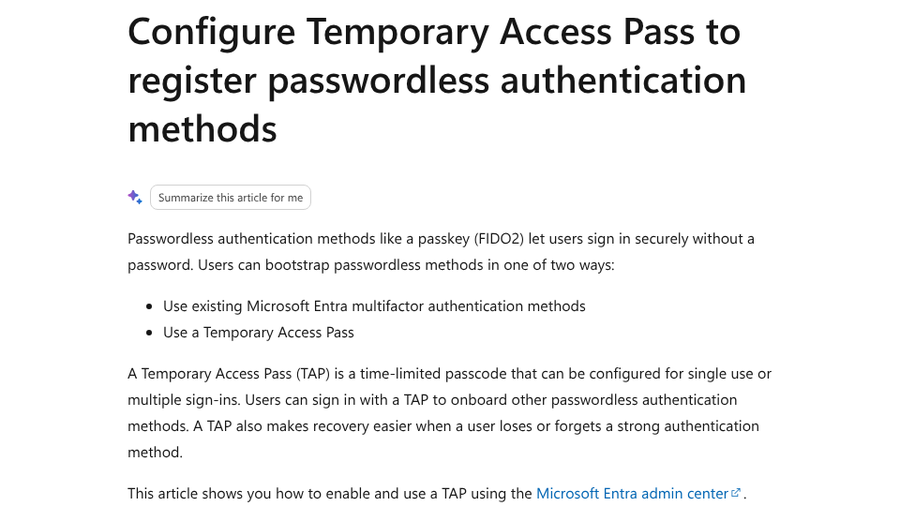
For work or school accounts, this is an IT ticket. In the September 2026 Reddit thread, two school IT staff said the fix takes a few clicks: they require re-registration of multifactor authentication, and you set it up fresh. Your organization may also issue a Temporary Access Pass. Microsoft describes it as a time-limited passcode that lets you sign in and register a new method, which makes recovery easier when you lose a strong sign-in method.
Small businesses need a plan for this. In the same thread, one commenter described a business owner who was the only global admin on a Microsoft 365 account and traded in his old phone at Christmas without moving Authenticator. With no second admin account, there was nobody to reset him. For personal accounts and other codes, our guide to moving your authenticator without the old phone covers the recovery routes.
A 2026 change for modified phones
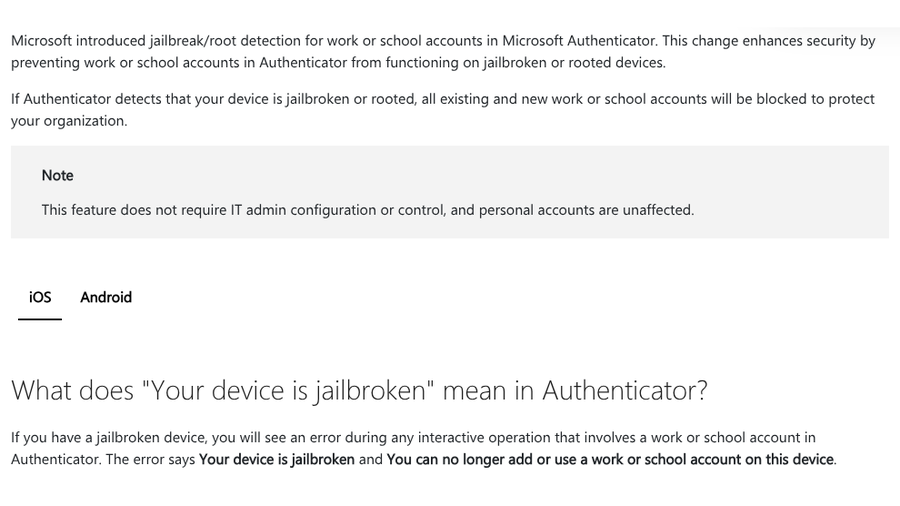
If your new phone is jailbroken or rooted, work sign-ins won’t work in Authenticator at all. Microsoft’s page on jailbreak and root detection says Authenticator now blocks all existing and new work or school accounts on modified devices. It adds that the check doesn’t need IT configuration and doesn’t affect personal accounts. Microsoft’s Entra release notes date the rollout to February 2026.
If you’re also thinking about switching apps for your personal codes, our comparison of authenticator apps with cloud backup covers the options. For work accounts, which app you can use is your organization’s call.
Main Takeaways
- Restoring Microsoft Authenticator brings back only the name of work and school accounts, so you must sign in again on the new phone.
- Backups restore third-party and code-only personal accounts, but only between phones of the same type.
- Android backup moves from a personal Microsoft account to Google One backup starting January 2027.
- Keep the old phone until you’ve tested work sign-ins on the new one, then remove it from Security info.
- If the old phone is gone, ask IT to reset your registration or issue a Temporary Access Pass.
Frequently Asked Questions
How do I transfer Microsoft Authenticator to a new phone?
Back up Microsoft Authenticator on the old phone through iCloud on iPhone or Cloud Backup on Android. Restore it on a new phone of the same type, then sign in again to each work or school account before resetting the old phone.
Why didn’t my work account transfer to my new phone?
Microsoft only restores the account name for work or school accounts. Open the account on the new phone and sign in again. If your organization requires it, add the new phone at your Security info page or ask IT to reset your registration.
Can I move Microsoft Authenticator from iPhone to Android?
Not with a backup. Microsoft says backups only restore on the same device type. You’ll need to add the new phone to each account individually, ideally while you still have the old phone to approve sign-ins.
What happens to Microsoft Authenticator backups on Android in 2027?
Starting January 2027, Microsoft says Android users will no longer use a personal Microsoft account for Authenticator backup. Backup will instead be turned on through Google One backup.
What if I already reset my old phone?
For work or school accounts, contact your IT help desk. They can require you to register again or issue a Temporary Access Pass so you can add the new phone. Personal accounts use their own recovery options.
Final Word
Moving Microsoft Authenticator is easy when the old phone is still in your hand and painful when it isn’t. Treat the old phone as a key you hand over, not trash. Back up, restore, sign in to every work account, test and only then wipe it. Five extra minutes now beats a help desk ticket on your first day with a new phone.