
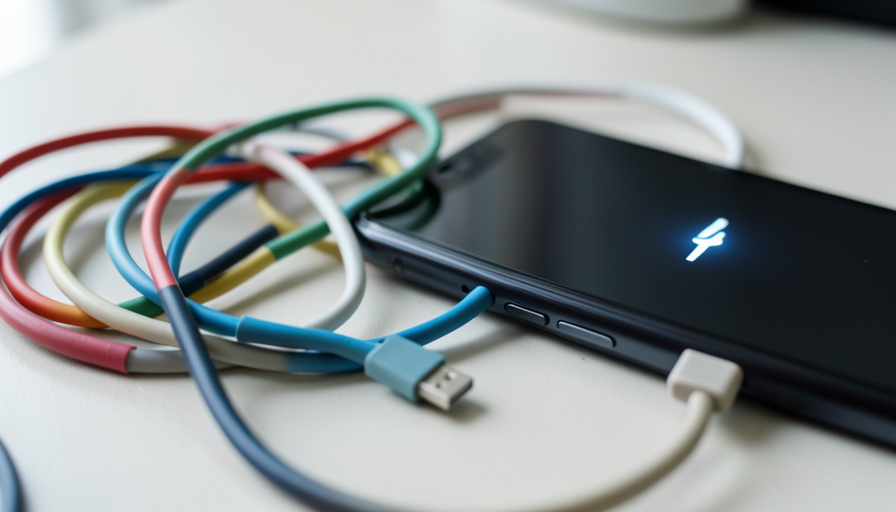
It is one of the small modern frustrations: your phone shows the charging icon, the little lightning bolt is right there, and yet the battery percentage barely climbs, or if you are using the phone, it actually falls while plugged in. The maddening part is that it looks like it is charging. Most of the time the problem is not your phone or even your charger; it is the cable. Not all USB-C cables are equal, and several very common types deliver just enough power to show the icon but not enough to meaningfully charge. Here are the culprits and how to tell them apart.
The short version: to charge quickly, you need a cable rated for the power your charger and device support, in good condition, plugged into a clean port. Miss any of those, and you get charging that is not really charging.
The short answer
USB-C cables look identical but differ enormously in what they can carry. The ones that cause weak or fake charging are: a charge-only or old low-speed cable, a cable not rated for high wattage, a thin, cheap, or very long cable that loses voltage, a USB-C-to-USB-A cable that caps the power, a damaged or worn cable, a counterfeit or non-compliant cable that negotiates power badly, and simply the wrong cable for your charger’s power profile. An eighth, related cause is not the cable at all but a lint-clogged port. The fix in nearly every case is to use a good, correctly rated USB-C power-delivery cable, in good shape, with a clean port, and the charging icon will finally mean what it says.
Table of Contents
1. A charge-only or old low-speed cable
Some USB-C cables are basic, built only for slow charging or low-speed data, and while they will light up the charging icon, they cannot pull the fast-charge power a modern phone expects. A cable that came free with a cheap accessory, or a bargain-bin extra, often falls here. It trickles in power slowly enough that heavy use outpaces it. If a cable charges noticeably slower than another on the same charger, it is likely one of these basic types. Keep it for emergencies, but do not expect fast charging from it.
2. A cable not rated for high wattage
This is the big one for fast charging. To carry high power, roughly above 60 watts, a USB-C cable must be electronically marked, or “e-marked,” and rated for the higher current, and a cable without that rating caps out at a lower power level no matter how strong your charger is. So a powerful laptop or phone charger paired with an ordinary cable simply cannot deliver its full speed; the system falls back to a slower profile. If you have a high-wattage charger but slow charging, the cable is very likely the limit. Use a cable explicitly rated for the wattage you need.
3. A thin, cheap, or very long cable
Physics catches up with bad cables. Thin internal wires and long runs increase resistance, which drops the voltage along the way, so the device receives less usable power than the charger sent. A very long or flimsy cable can turn a fast charger into a trickle, and the phone shows charging while gaining almost nothing. This is why a cheap three-meter cable often charges far worse than a quality shorter one. If your slow-charging cable is long and lightweight, swap in a shorter, well-made one and watch the difference.
4. A USB-C-to-USB-A cable
A cable with a USB-C end on your phone but a rectangular USB-A end on the charger is limited by that older connector. USB-A ports generally cannot deliver the higher-power fast-charging profiles that modern USB-C power delivery uses, so even a good cable is held back to slower speeds. If you are plugging into an older charger, a car port, or a hub through a USB-A end, expect slower charging by design. For fast charging, use a USB-C-to-USB-C cable with a proper USB-C power-delivery charger on the other end.
5. A damaged or worn cable
Cables take abuse: bending at the connector, getting yanked, living in a bag. Internal wires fray, connectors loosen, and the result is intermittent or weak charging that can look exactly like a slow charge. You might see the icon flicker on and off, or charging that only works at one angle. If wiggling the cable changes whether it charges, or the connector looks bent or the jacket is split near the ends, it is worn out. A frayed cable is also a safety risk, so retire it and use an intact one.
6. A counterfeit or non-compliant cable
Cheap, fake, or poorly made cables that do not meet the USB standards can fail to negotiate power correctly with your device, so they never establish the fast-charge handshake and default to minimal power. They may be sold as high-power cables while lacking the parts to actually deliver it. Sticking to reputable, standards-compliant cables avoids this, and the specifications are maintained by the USB Implementers Forum. If a suspiciously cheap “fast” cable charges slowly, its compliance is a fair thing to doubt.
7. The wrong cable for your charger’s power profile
Fast charging is a negotiation between the charger, the cable, and the device, and if the cable cannot support the profile the other two want, the whole system steps down to a slower, safe level. A cable fine for a phone may not carry a laptop charger’s full output, and pairing mismatched pieces gives you charging that works but crawls. The trio has to match. When charging is slow, check that the cable is rated for what your specific charger and device can do, rather than assuming any USB-C cable unlocks any charger’s speed.
8. A lint-clogged or dirty port
Sometimes the cable is fine and the port is the problem. Pockets and bags pack lint into a USB-C port over time, and a plug of compressed debris keeps the connector from seating fully, so it makes just enough contact to show charging but not enough to charge well, or it charges only when pressed at an angle. Look into the port with a light; if you see gray fuzz, gently clean it out with a wooden or plastic pick, carefully and with the phone off. A surprising number of “the cable is not charging” cases are really a dirty port.
How to identify and fix it
Diagnose it in a couple of minutes. First watch the behavior: charging that barely gains, or drops during use, points to too little power getting through. Then test with a known-good cable and charger, ideally the ones that came with the device or a quality replacement rated for its wattage, and see if the speed jumps. Inspect the suspect cable for damage and its ends for the right connectors, and shine a light in the port to check for lint. The fix is usually simple: use a well-made USB-C power-delivery cable rated for your charger and device, keep it in good condition, and keep the port clean. Do that, and the charging icon finally tells the truth. If your battery drains fast even when charging keeps up, our guide to fixing Android battery drain covers the other half of the problem.
This article is general information, not professional repair advice. Charging behavior depends on your specific device, charger, and cable, and improper cleaning or damaged cables can harm your device, so handle ports gently, use quality standards-compliant cables, and consult a professional if a device will not charge with known-good equipment.
Frequently asked questions
Why does my phone say charging but the battery isn’t going up?
Usually the cable or port is delivering only a trickle of power, enough to show the charging icon but not enough to outpace what the phone uses, so the percentage stalls or drops. Common causes are a low-power or charge-only cable, one not rated for high wattage, a worn cable, or a lint-clogged port. Test with a known-good, properly rated cable and clean the port to confirm.
How do I know if my USB-C cable supports fast charging?
Check its rating, since fast charging above roughly 60 watts requires an electronically marked cable rated for the higher current. Cables are usually labeled with a wattage or a standard on the packaging or the connector. The practical test is to compare it against a cable you know charges fast on the same charger; if the suspect cable is much slower, it likely does not support the higher-power profile.
Does a longer USB-C cable charge slower?
It can, especially if it is thin or cheaply made, because longer runs and thin wires increase resistance and drop voltage, so the device gets less power than the charger sent. A quality, appropriately thick cable minimizes this, but a long bargain cable often charges noticeably slower. If you need both length and speed, choose a well-made cable rated for your power level rather than the cheapest long one.
Can a USB-C to USB-A cable fast charge?
Generally not at the highest speeds. USB-A ports do not support the higher-power USB-C power-delivery profiles, so a cable with a USB-A end is limited to slower charging even if everything else is capable. For fast charging, use a USB-C-to-USB-C cable with a proper USB-C power-delivery charger. Reserve the USB-A cable for older chargers, car ports, or when speed does not matter.
Could a dirty charging port be the problem instead of the cable?
Yes, and it is common. Lint packed into a USB-C port stops the plug from seating fully, so it makes partial contact that shows charging but charges poorly, or only at an angle. Shine a light into the port; if you see debris, gently remove it with a wooden or plastic pick while the phone is off. Cleaning the port fixes many cases blamed on the cable.
The bottom line
When your phone insists it is charging but the battery says otherwise, the cable is the usual suspect. Charge-only and low-power cables, ones not rated for high wattage, thin or overly long cables, USB-C-to-USB-A cables, worn or counterfeit cables, and simple cable-charger mismatches all produce charging that is technically on but practically useless, and a lint-filled port does the same. Test with a known-good, properly rated USB-C power-delivery cable, keep your cables intact, and keep the port clean, and the icon will mean real charging again. For more on getting the most from your devices, browse The Other Stream’s Tech section.