You feel your phone was quiet all afternoon, then you unlock it and a dozen notifications land at once, messages, app alerts, an appointment reminder that is now useless because it arrived late. It is one of the more frustrating modern phone problems, and a lot of the time the culprit is the very feature meant to help you: battery saving. The settings that stretch your battery life do it partly by holding back what apps can do in the background, and delayed notifications are a common side effect. The good news is that once you know which settings cause it, the fix is straightforward.
Here is how Low Power Mode and battery optimization delay notifications on iPhone and Android, what still gets through, and how to make the apps that matter alert you on time.
The short answer
Yes, battery-saving settings can delay your notifications. On an iPhone, Low Power Mode reduces background activity, and on Android, battery optimization, along with the aggressive battery managers some phone makers add, restricts what background-limited apps can do. The effect is that notifications for those apps get delayed or bundled up and delivered later, often in a batch when you next use the phone. Truly urgent, high-priority push notifications frequently still arrive on time, since the system handles them directly, but anything that depends on an app doing background work, or an app the system has decided to throttle, can lag. The fix is to exempt the specific apps you care about from these battery restrictions, so they can alert you the moment something happens.
Table of Contents
How Low Power Mode affects an iPhone
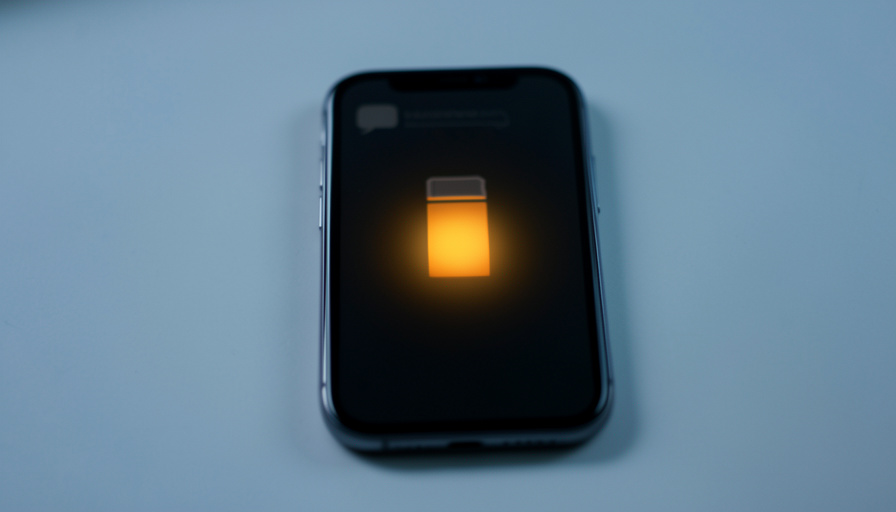
On an iPhone, Low Power Mode is designed to squeeze out more battery by dialing back background activity, and that is where notifications can suffer. It pauses Background App Refresh, so apps cannot quietly update their content in the background, and it reduces other background tasks. Notifications sent as true push messages through Apple’s system generally still come through, because the phone receives those directly. But apps that rely on background refresh to fetch new information and then alert you, or that do work in the background to generate a notification, can be delayed while Low Power Mode is on. If your alerts are lagging and the battery icon is yellow, that mode is the first thing to check.
How battery optimization affects Android
Android leans harder on battery management, and it directly shapes notification timing. Features like Doze, which kicks in when the phone sits idle, and app standby defer background network access into occasional maintenance windows rather than letting apps talk to their servers constantly. For apps the system has placed in a restricted or optimized battery state, that means notifications can be delayed or delivered in batches instead of instantly. High-priority messages can still wake the device, so the most time-sensitive alerts often arrive, but a normal-priority notification from a throttled app may wait. If one particular app’s alerts are always late on your Android phone, its battery-optimization setting is the prime suspect.
The bigger Android culprit: aggressive battery managers
Beyond standard Android battery optimization, several phone makers add their own, more aggressive battery managers that go further in killing or restricting background apps, and these are a leading cause of missed and delayed notifications. Brands known for this include Samsung, Xiaomi, OnePlus, Oppo, Huawei, and others, and a community resource, dontkillmyapp.com, catalogs the specific behavior and settings for each. On these phones, an app can be shut down in the background so thoroughly that its notifications simply do not arrive until you open it. The fix is per brand but similar in spirit: find the phone maker’s battery or app-management settings and allow the important app to run unrestricted, including any autostart permission.
Not every delay is the battery
Before you blame battery settings for everything, rule out the other common causes, because the fixes are different. On an iPhone, a Focus mode or Do Not Disturb can silence or hold notifications, and the Scheduled Summary feature deliberately gathers non-urgent notifications to deliver at set times, which looks exactly like a battery delay but is not. On Android, Do Not Disturb and per-app notification settings can do the same. And sometimes an app’s own settings, or a weak connection, are the real issue. So check whether a Focus, a summary schedule, or Do Not Disturb is active first, since those are the quickest to fix and are unrelated to power saving.
How to fix delayed notifications
The cure is to let the apps you care about work while trimming battery elsewhere. On an iPhone, turn off Low Power Mode when you want timely alerts, enable Background App Refresh for the specific apps that matter, and confirm no Focus, Do Not Disturb, or Scheduled Summary is holding their notifications. On Android, open the app’s settings and set its battery usage to unrestricted, or exclude it from battery optimization, and turn off any adaptive-battery restriction the system applied to it; on phones with a maker’s own battery manager, also allow the app to run in the background and autostart, using the per-brand steps that resources like the one above lay out. Then check the app’s notification settings are on. Do this only for the handful of apps you genuinely need to hear from, and you keep most of the battery benefit while ending the delays.

This article is general information and is not affiliated with or endorsed by Apple, Google, or any phone maker. Menu names, settings, and battery behavior differ by device, brand, and operating-system version and change over time, so use these as general guidance and follow the current steps for your specific phone.
Frequently asked questions
Does Low Power Mode stop notifications on an iPhone?
It does not stop them outright, but it can delay some. Low Power Mode pauses Background App Refresh and reduces background activity, so apps that rely on background work to fetch content and alert you can lag. True push notifications handled by the system generally still arrive. If your alerts are late and the battery icon is yellow, turning off Low Power Mode and enabling Background App Refresh for key apps usually helps.
Why do my Android notifications arrive all at once?
Usually because battery optimization is batching them. When Doze or a restricted battery state limits an app’s background access, its notifications can be deferred into occasional windows and then delivered together, often when you next unlock the phone. Aggressive battery managers from some phone makers make this worse. Setting the app to unrestricted battery usage and excluding it from optimization typically restores real-time alerts.
Which is the bigger cause, standard battery optimization or the phone maker’s settings?
On many Android phones, the manufacturer’s own aggressive battery manager is the bigger culprit, because it can kill background apps more thoroughly than standard Android optimization. Brands like Samsung, Xiaomi, and OnePlus are known for this. Fixing it usually means digging into the phone maker’s battery or app-management settings to allow the app to run in the background and autostart, in addition to the standard optimization exclusion.
Will exempting apps from battery optimization hurt my battery life?
A little, but you control how much. Each app you allow to run unrestricted can use somewhat more background power, so exempt only the handful you genuinely need timely alerts from, such as messaging or calendar apps, rather than everything. Done selectively, the battery cost is small and you keep most of the savings while ending the delays for the apps that matter.
My notifications are late but battery saving is off. What else could it be?
Check for a Focus mode, Do Not Disturb, or a Scheduled Summary on iPhone, and Do Not Disturb or per-app notification settings on Android, since these hold or silence alerts and look just like a battery delay. Also confirm the app’s own notification settings are enabled and your connection is stable. These non-battery causes are common and quick to rule out before troubleshooting further.
The bottom line
If your notifications keep arriving late or in a clump, battery-saving settings are a likely reason. On an iPhone, Low Power Mode reins in background activity; on Android, battery optimization and the aggressive battery managers some makers add restrict background apps, delaying or batching their alerts, even though the most urgent pushes often still get through. First rule out a Focus mode, Do Not Disturb, or a notification summary, then exempt the specific apps you rely on from the battery restrictions so they can alert you instantly. A little targeted tuning gets your important notifications back on time without giving up your battery life. For a related battery issue, see our guide to fixing Android battery drain after an update, and browse The Other Stream’s Tech section.
Related Posts