
Passkey not working? Why it fails on iPhone, Android or Windows, how to tell which device or app is at fault, and the fix for each of the nine most common failures.
In September 2026, a 1Password user on Reddit described a frustrating loop. Signing in to Salesforce with a passkey showed “Finishing signing in,” then nothing. The password manager never offered the passkey, and the only prompt that appeared was a Windows one that ended with “something went wrong.” About 20 minutes later, it worked. Passkeys are meant to replace passwords with a fingerprint, face scan or PIN, and most of the time they do. When a passkey is not working, though, the error messages rarely say why. The cause is usually one of a short list of settings.
Bottom Line First
A passkey usually fails because your phone has no screen lock, Bluetooth is off for a phone-to-computer sign-in, the passkey is saved in a different password manager than the one responding, or sync through iCloud Keychain or your password manager is turned off. Update your browser and operating system, check which app holds the passkey, and keep a second sign-in method ready before you remove anything.
Table of Contents
Check the basics first
Google’s passkey help page lists the minimums for Google Account passkeys, and they are a good guide for most sites. You need a computer running Windows 10, macOS Ventura or ChromeOS 109 or later, or a phone on Android 9 or iOS 16 or later. Supported browsers are Chrome and Edge 109 or later, Safari 16 or later and Firefox 122 or later.

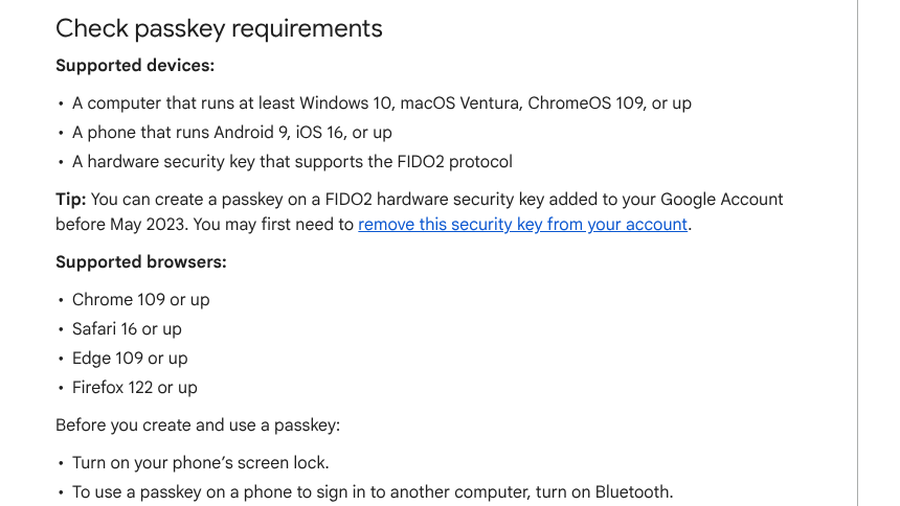
The same page adds three setup rules that explain many failures: turn on your phone’s screen lock, turn on Bluetooth to use a phone passkey on another computer, and turn on iCloud Keychain on iPhone, iPad and Mac.
9 reasons your passkey is not working
1. Your phone has no screen lock
A passkey is unlocked by the same thing that unlocks your device, so a phone without a PIN, pattern, fingerprint or face unlock cannot use one. Set a screen lock first. If a passkey asks for a PIN you do not remember creating, it is usually your device’s unlock PIN or password, as commenters explained to a confused Google Ads user in a September 2026 thread.
2. The passkey is saved in a different password manager
This is the most common cause of a missing prompt. A passkey lives wherever it was created, such as iCloud Keychain, Windows Hello or a password manager like 1Password or Bitwarden. If a different manager answers the sign-in request, it will not find the passkey. In the Salesforce case, the Windows prompt appeared instead of 1Password’s. Check your password manager’s list for the site, make sure its browser extension is turned on, and on phones confirm that the app holding the passkey is enabled as an AutoFill or passkey provider in your settings.
3. Sync is turned off
Synced passkeys only follow you if sync is on. Apple’s passkey security page explains that passkeys sync across your devices using iCloud Keychain, which is end-to-end encrypted. If iCloud Keychain is off, a passkey made on your Mac will not show up on your iPhone. The Google Ads user in September fixed their problem by turning on iCloud Keychain sync across their iPhone and MacBook. The same logic applies to Google Password Manager and third-party apps: sign in to the same account everywhere and confirm sync is enabled.
4. Bluetooth is off for a phone-to-computer sign-in
When you sign in on a computer by scanning a QR code with your phone, the two devices need to be near each other. Microsoft’s passkey FAQ says a proximity check “takes place to ensure that the passkey is only being used for authentication on a device that’s nearby,” and Google tells you to turn on Bluetooth for this kind of sign-in. Turn Bluetooth on for both the phone and the computer, keep them close together, and try again. If the QR code itself will not scan, our guide to QR code login failures covers camera and timing problems.
5. Your browser or operating system is out of date
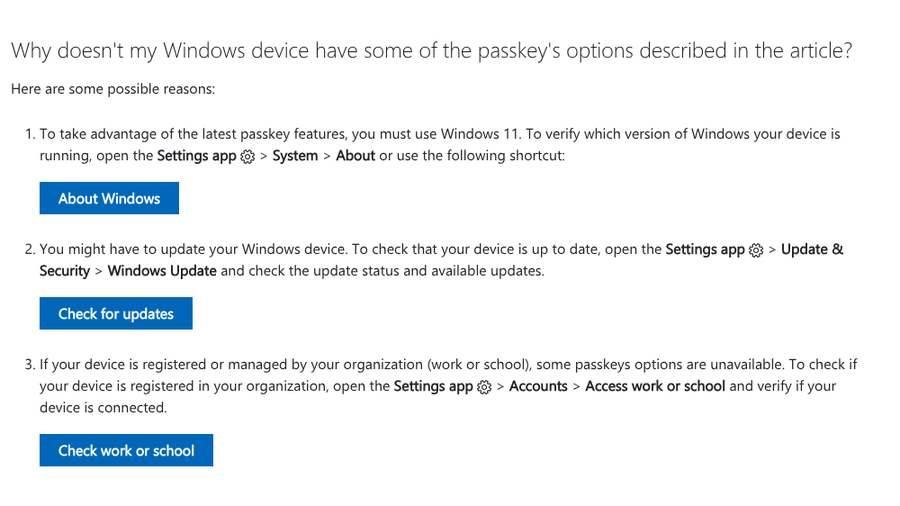
Older versions handle passkeys poorly or not at all. Microsoft says you need Windows 11 to use the latest passkey features. In an April 2026 r/firefox thread, users noted that Firefox relies on the Windows sign-in dialog, which offers the phone QR option on Windows 11 but not on Windows 10. Update your browser, your password manager and your operating system before trying anything else.
6. The site only accepts passkeys stored on the device
Some services, often workplace sign-in systems, accept only device-bound passkeys and reject passkeys synced through a password manager. In a June 2026 thread, an iPhone user’s Bitwarden passkey worked on a desktop but failed on the phone for a work login, and a commenter explained that some services allow synced passkeys while others only allow device-based ones. If that is the case, create a separate passkey on the device itself.
7. A work or school device is limiting your options
Microsoft notes that if your device is registered or managed by your organization, some passkey options are unavailable. You can check under Settings, Accounts, Access work or school. On a managed laptop, your IT team may control which passkey types and providers are allowed.
8. The passkey was deleted on one side
Every passkey has two halves: an entry in your account on the website and a matching credential in your password manager. Delete either one and sign-in fails. If you removed a passkey from your password manager but not from the account, or the other way around, delete the stale entry and create a fresh passkey. Most sites let you keep several passkeys, one per device or manager, so adding a new one is safe.
9. It is not a passkey problem at all
Some “passkey” errors are something else. Searches for a Microsoft passkey often come from people typing an Office product key, which is a different thing entirely. In August 2026, a TikTok user who was asked for a passkey from another device was told by commenters that it looked like a trusted-device issue and that account recovery was the real fix. If you never created a passkey for that account, use the site’s normal recovery options.
When Windows says “something went wrong”
The Windows passkey dialog has a generic failure message that covers many causes. In an April 2026 r/microsoft365 thread, several people reported “Something went wrong. There was an issue with your passkey attempt” when scanning a phone QR code, even after clearing caches and switching browsers. Nobody found a single fix. The practical workaround is to use your password manager’s own prompt or a different sign-in method, then update Windows and try the QR option again later.
Whatever the cause, keep a way back in. Microsoft recommends saving passkeys to a synced credential manager, or creating passkeys on several devices to act as a spare key. Keep recovery codes somewhere safe, too. Our guides to passwordless login gotchas when switching phones and switching your family to passkeys cover backup plans in more detail.
Main Takeaways
- Most passkey failures come from a missing screen lock, Bluetooth being off, sync being off or the wrong password manager answering.
- Check which app holds the passkey, and turn that app on as your passkey or AutoFill provider.
- Update your browser, operating system and password manager, and use Windows 11 for the newest passkey features.
- Keep a second passkey or recovery method before deleting anything.
Frequently Asked Questions
Why is my passkey not working?
A passkey usually stops working because the device has no screen lock, the passkey is stored in a different password manager, sync is turned off or Bluetooth is off during a phone-to-computer sign-in. Outdated browsers and work-managed devices can also block passkeys.
Why is my passkey not working on my iPhone?
On an iPhone, make sure iCloud Keychain is on so passkeys sync from your other Apple devices. If the passkey is in another app such as a third-party password manager, turn that app on as a passkey provider in your AutoFill settings and update iOS.
Do I need Bluetooth to use a passkey?
You need Bluetooth when you use a passkey on your phone to sign in to a different computer by scanning a QR code. Signing in on the same device that stores the passkey does not require Bluetooth.
Why won’t my Google passkey work?
Google passkeys need a supported browser, a phone screen lock and, on Apple devices, iCloud Keychain turned on. If the prompt shows the wrong password manager, choose the one that saved your Google passkey or create a new passkey in your Google Account security settings.
What do I do if my passkey was deleted?
If a passkey was deleted from your password manager, sign in with another passkey, a password or a recovery method, then remove the old entry from your account and create a new passkey. If you have no other method, use the site’s account recovery process.
Closing Thoughts
Passkeys fail for mundane reasons, not mysterious ones. Before you delete anything, check the screen lock, Bluetooth, sync and which password manager is answering the prompt. Update everything, then try again. And set up a second passkey on another device today, so the next time one fails, you are inconvenienced rather than locked out.