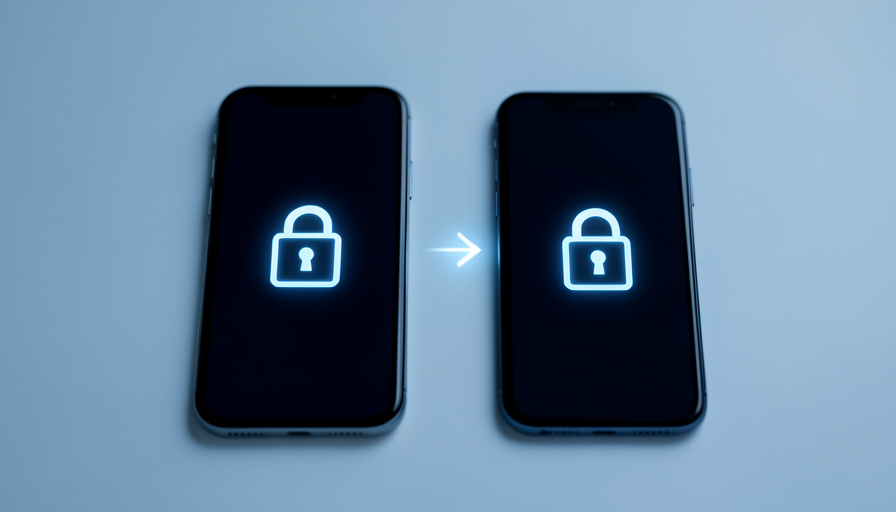
Passwordless logins are supposed to make your life easier and safer, and mostly they do. Then you get a new phone, and the whole system that was protecting you turns into the thing locking you out. Your passkeys did not come along, your authenticator app is empty, the text codes go to a number you no longer control, and the one account you need to fix it all is itself guarded by a factor stuck on the old device. The security worked perfectly, just not in your favor. Almost all of this is preventable, but only if you prepare before you switch, not after.
Here are ten passwordless and two-factor gotchas that lock people out when they change phones, and what to do about each before you migrate.
The short version
Before switching phones, make sure every login factor can follow you. Synced passkeys travel within the same ecosystem or password manager, but device-bound ones and passkeys tied to an account you are leaving may not, so export or re-register them first. Back up your authenticator app, since its codes do not move on their own, and confirm your phone number or eSIM will transfer so text codes still reach you. Save recovery or backup codes for every important account, register a second factor like a backup security key, and remember that setting up biometrics on a new phone still needs another factor first. Watch for apps, especially banking, that re-verify you on a new device. Above all, keep your old phone working until you have logged into everything on the new one. Preparation is the whole game here.
Table of Contents
1. Device-bound passkeys that never sync
Not all passkeys are created equal. A synced passkey lives in a password manager that copies it across your devices, but a device-bound passkey is tied to a single piece of hardware, such as a security key or a specific phone, and by design it does not leave. If an account’s passkey was created device-bound on your old phone, it simply will not be on the new one, and you will need another way in. Before switching, identify any device-bound passkeys and make sure each of those accounts also has a backup method or a second registered credential, so losing the old device does not lose the account.
2. Passkeys stuck in an ecosystem you are leaving
Passkeys sync beautifully within one world, iCloud Keychain across Apple devices, Google Password Manager across Android, or a manager like 1Password across both. The trouble comes when you cross worlds, moving from an iPhone to an Android phone, because a passkey saved in one ecosystem has not automatically appeared in the other. Cross-platform passkey export is finally arriving, through the FIDO Alliance’s credential exchange work now beginning to roll out, but it is new, not universal, and must be done from the old phone while you still have it. If you are switching ecosystems, transfer or re-register your passkeys before you wipe the old device.
3. Authenticator codes that do not move themselves
The time-based codes in an authenticator app are generated from secret keys stored on your phone, and those secrets do not transfer just because you signed into a new device. If you set up an account’s codes and never enabled backup or migration, a new phone starts with an empty authenticator and no way to produce the codes those accounts demand. Before switching, back up your authenticator through its cloud sync, or use its built-in export or transfer feature to move the accounts over. Our guide to authenticator apps with cloud restore covers which handle this gracefully.
4. Text codes tied to a number or eSIM you lose
SMS one-time codes depend on you receiving texts at the same number, and a phone switch can quietly break that. If your number does not port cleanly, or your eSIM does not transfer to the new phone, or you let the old line lapse, the codes stop arriving and any account relying on them locks you out. Before migrating, confirm exactly how your carrier moves your number and eSIM, and do not cancel the old line until the new phone is receiving calls and texts. Where you can, replace SMS codes with an app or passkey, since a number is one of the weaker things to depend on.
5. Biometrics that need another factor to set up
Face and fingerprint unlock feel like your login, but they are local to each device, and the new phone has never met your face. To enroll biometrics and unlock an app on the new device, you almost always have to authenticate once with another factor first, a password, a passkey, or a code. If that other factor is missing, because it lived on the old phone, biometrics cannot bootstrap you in on their own. Make sure that for every app you unlock with a fingerprint or face, you still hold the underlying credential needed to set it up again on fresh hardware.
6. No saved recovery or backup codes
Nearly every service that offers two-factor login also gives you a set of one-time recovery codes, and they are the single best insurance against a lockout, yet most people never save them. These codes let you back into an account when your normal factor is gone, which is exactly the situation a phone switch can create. Before you migrate, generate and securely store the recovery or backup codes for every important account, in a password manager or somewhere offline you can reach without the phone. When something does not carry over, those codes are often the only clean way back in.
7. Email or magic links you cannot reach
Some logins send a magic link or code to your email, which is fine, until your email account is itself protected by a factor stuck on the old phone. Then you are in a loop: you need the email to get into the app, but you need the app, or its codes, to get into the email. Untangling that after the fact is painful. Before switching, make sure you can reach your primary email on the new device independently, with its own recovery method sorted, since so many other logins ultimately fall back to it. Your email is the master key; secure its access first.
8. Security-key-only accounts with no backup key
If you protect an account with a hardware security key and registered only one, that single key is a single point of failure, and it becomes acute during a device change if the key is misplaced in the shuffle or was your only second factor. The fix is a rule worth following everywhere: register at least two keys, or a key plus another method, and keep the backup somewhere separate. That way losing or misplacing one during a move does not strand you. A lone security key is excellent protection right up until the day you do not have it.

9. Apps that re-verify you on a new device
Some apps, banking and financial ones especially, treat a new phone as a new risk and make you re-verify your identity or re-link the device before they fully work. That can mean re-confirming details, receiving a code through a channel you must still control, or waiting out a security hold that can last hours or days. If you rely on such an app for time-sensitive things, do not assume it will just log in on the new phone. Check each one’s device-change process in advance, keep the old phone handy for any confirmation step, and switch when a short delay would not hurt you.
10. Wiping the old phone too soon
This is the mistake that makes all the others worse. People factory-reset or trade in the old phone the moment the new one is set up, then discover an account that did not carry over, with its only remaining factor now erased. The old phone is your safety net during a migration: it still has your passkeys, your authenticator, your logged-in apps. Keep it powered, unwiped, and within reach until you have successfully logged into every important account on the new device. Only once everything is confirmed working should you reset or hand off the old phone. Patience here prevents almost every lockout.
How to switch phones without getting locked out
Do it as a checklist, before the migration. Inventory your important accounts and how each one lets you in, then make sure every factor can follow you: sync or export your passkeys, back up or transfer your authenticator, and confirm your number and eSIM will move. Save recovery codes for everything, register a backup security key where you use one, and verify you can reach your primary email independently on the new phone. Log into each account on the new device while the old one is still working, and only wipe the old phone once every login is confirmed. Background on how passkeys and portability work is available from the FIDO Alliance, the group behind the standard.
This article is general information, not security or professional advice. Passwordless features, passkey portability, and recovery options differ by service, device, and operating-system version and are changing quickly, so follow each provider’s current instructions and confirm your specific accounts’ recovery methods before switching devices.
Frequently asked questions
Do passkeys transfer to a new phone automatically?
Synced passkeys do, within the same ecosystem or password manager, so an Apple-to-Apple or Android-to-Android move usually brings them along. Device-bound passkeys do not transfer, and moving between ecosystems, like iPhone to Android, has not been automatic. Cross-platform export is now beginning to roll out through the FIDO Alliance’s credential exchange work, but it is new and must be done from the old phone before you wipe it.
How do I move my authenticator app to a new phone?
Do it before wiping the old phone, because the codes do not move on their own. Use the app’s cloud backup or sync if it has one, or its built-in export or transfer feature, which often shows a QR code you scan on the new device to bring the accounts across. If you skip this and reset the old phone, the secret keys are gone, and you will need each account’s recovery codes to get back in.
What happens to SMS two-factor codes when I switch phones?
They keep working only if you still receive texts at the same number, so confirm your number ports and your eSIM transfers to the new phone, and do not cancel the old line until the new one is getting calls and texts. If the number lapses or does not move, the codes never arrive and you can be locked out. Where possible, switch those accounts to an authenticator app or a passkey instead.
Why am I locked out of an account after getting a new phone?
Usually because a login factor stayed behind: a device-bound passkey, an authenticator you did not back up, a phone number that did not transfer, or biometrics that need another factor to set up. The way back in is typically a saved recovery code or a backup method, which is why saving those in advance matters. If you still have the old phone unwiped, you can often use it to log in and repair access.
What should I do before switching phones to avoid a lockout?
Treat it as a checklist: sync or export your passkeys, back up or transfer your authenticator app, and confirm your number and eSIM will move. Save recovery codes for every important account, register a backup security key where you use one, and make sure you can reach your email independently. Then log into everything on the new phone while the old one still works, and only reset the old phone once all logins are confirmed.
The bottom line
Passwordless security is a real upgrade, but it shifts the risk from remembering a password to keeping your factors with you when your hardware changes. The lockouts almost always trace to something that stayed on the old phone: a passkey that did not sync, an authenticator that was never backed up, a number that did not transfer, or codes you never saved. Prepare before you migrate, move every factor deliberately, and keep the old phone alive until the new one can log into everything. Do that, and switching phones is routine instead of a crisis. For more on staying secure without the headaches, browse The Other Stream’s Tech section.
Related Posts