The cloud storage bill shows up again, and you think: I have a big external drive, why am I paying monthly for this? Canceling and keeping everything local can absolutely save money, but the cloud was quietly doing several jobs you might not have noticed, keeping an offsite copy, versioning your files, and running automatically. Replace those, and local backups are great. Skip them, and one dead drive or one house fire wipes out everything at once.
Before you cancel and lean on a drive on your desk, run through these ten questions. If you can answer them well, go ahead. If a few make you wince, your local plan has gaps worth closing first.
What to know
A single local drive is not a backup, it is a single point of failure. The gold standard is the 3-2-1 rule: three copies of your data, on two different types of media, with one copy kept offsite. Before canceling cloud storage, make sure you have more than one copy, an offsite copy for fire or theft, protection against ransomware and accidental deletion through versioning, encryption on your drives, and an automated backup you have actually test-restored. Understand that sync is not backup, plan for drives wearing out and your data growing, and make sure someone can access your files if something happens to you. Cover those and local backups work; ignore them and you are one failure from losing everything.
Table of Contents
1. Do I follow the 3-2-1 rule?
This is the backbone of any backup plan: keep three copies of your data, on two different kinds of media, with at least one copy stored offsite. It exists because any single copy or single location can fail, and the rule builds in redundancy so no one failure loses your files. The Cybersecurity and Infrastructure Security Agency and backup experts recommend it for exactly this reason. If canceling the cloud would drop you below three copies with one offsite, you are moving in the wrong direction.
2. Is one external drive my only copy?
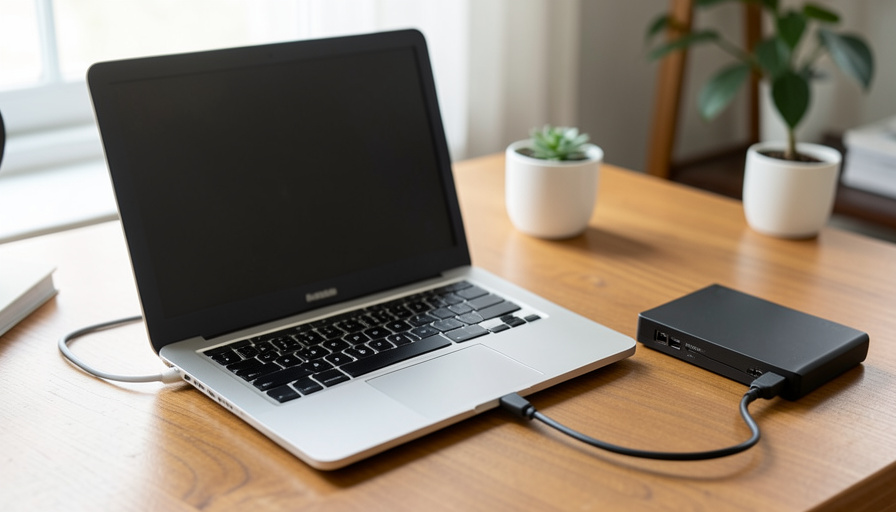
If your entire plan after canceling is a single external drive, you have a single point of failure. Drives fail, get dropped, get stolen, or simply stop working one day with no warning, and when the only copy goes, so does everything on it. A backup is not a backup until there are at least two of it. One drive holding your only copy of family photos and important documents is a gamble, not a strategy.
3. Do I have an offsite copy for fire, flood, or theft?
Local-only backups share one fatal weakness: they are all in the same place. A fire, flood, burst pipe, or burglary can destroy your computer and every backup drive next to it in one event. An offsite copy, whether that is a drive at a relative’s house, a safe-deposit box, or yes, some cloud storage, is what survives a disaster that hits your home. This is often the single most important job the cloud was doing for you, so do not cancel it without a replacement.
4. How old are my drives, and do they wear out?
Storage drives do not last forever. Hard drives and SSDs both wear out over years of use, and an aging drive you have trusted for a long time may be closer to failure than you think. Relying on local backups means owning that maintenance: knowing the age of your drives, replacing them before they die, and not assuming a five-year-old drive is as safe as a new one. The cloud quietly handled hardware failure for you; locally, that job is yours.
5. Do I have at least two local copies?
Beyond the offsite copy, redundancy at home matters too. Having your data on two local drives, not one, means a single drive failure is an inconvenience rather than a catastrophe, because the second copy is right there. If your plan is one working copy plus one backup drive, that is the minimum; one drive doing everything is not enough. More copies in more places is the whole idea, and it is cheap insurance compared with losing the data.
6. Are my backups encrypted?
Cloud services usually encrypt your data; a bare external drive often does not unless you set it up. If a local backup drive holding your documents, photos, and records is lost or stolen, an unencrypted drive hands all of it to whoever finds it. Before you rely on local backups, turn on encryption for the drives that hold your important files, so a lost drive is a hardware loss rather than a privacy disaster. It is a setting worth the small effort.
7. Do I have versioning against ransomware and mistakes?
One of the cloud’s quiet superpowers is keeping older versions of your files, which lets you roll back after ransomware encrypts your data or you accidentally overwrite or delete something. A simple local copy usually has no such history: if the bad version is copied over the good one, the good one is gone. Make sure your local backup keeps versions or older snapshots, not just the latest state, or you lose the protection against your own mistakes and against malware.
8. Do I understand that sync is not backup?
This trips up a lot of people. A drive or folder that mirrors your files in real time is sync, not backup, because it faithfully copies your mistakes too: delete or corrupt a file and the change propagates to the mirror, destroying the “backup.” A true backup is a separate copy that does not instantly reflect every change, so you can go back to a known-good state. If your local plan is really just a synced mirror, it will not save you from deletion, corruption, or ransomware.

9. Is it automated, and have I test-restored it?
A backup that depends on you remembering to plug in a drive and copy files will eventually be skipped, and a backup you have never restored from may not work when you need it. Automate the backup so it happens without you thinking about it, and then actually test a restore, pull a file or two back from the backup, to confirm it works. An untested backup is a hope, not a safety net, and the moment of a real failure is the worst time to discover it never worked.
10. Can someone access it if something happens to me?
Cloud accounts increasingly offer legacy or trusted-contact features so family can reach your files if you die or are incapacitated. A pile of local drives with passwords only you know is the opposite: your data may be safe and completely inaccessible to the people who need it. If you rely on local backups, make sure a trusted person knows they exist, where they are, and how to get into them, so your photos and important records are not locked away forever.
Canceling the right way
None of this means the cloud is mandatory, only that a single desk drive is not a substitute for it. If you want to cancel to save money, first rebuild what the cloud was doing: keep more than one copy, put one of them offsite, add versioning and encryption, automate it, and test a restore. A hybrid often wins, mostly local with a small offsite or cloud copy of the truly irreplaceable files, and it can still cost far less than a big monthly plan. Consider your data’s growth too, so you are not out of space in a year. For a related take on owning your own storage, see our guide to offline apps you can back up yourself.
This article is general information, not professional data-protection advice. The right backup setup depends on how much your data matters and your risk tolerance, so weigh these questions against your own needs and consider professional help for critical or business data.
Frequently asked questions
Is one external hard drive enough for backups?
No. A single external drive is one copy in one place, which is a single point of failure. Drives fail, get lost, or are stolen, and when the only copy goes, so does your data. Aim for the 3-2-1 rule: three copies, on two types of media, with one kept offsite.
What is the 3-2-1 backup rule?
Keep three copies of your data, on two different types of media, with at least one copy stored offsite. It builds redundancy so no single failure, whether a dead drive, ransomware, or a house fire, loses everything. It is the standard experts recommend, and worth meeting before you rely on local backups.
Is syncing my files the same as backing them up?
No. Sync mirrors your files in real time, so it also copies deletions, corruption, and ransomware damage to the mirror, destroying the backup. A real backup is a separate copy that lets you restore an earlier, known-good version. If your plan is just a synced mirror, it will not protect you from mistakes or malware.
Do I still need cloud storage if I have local backups?
Not necessarily, but you need to replace what it did: an offsite copy for disasters, versioning, and automation. A single local drive lacks all three. A hybrid of local backups plus a small offsite or cloud copy of your irreplaceable files often gives the best protection for the least money.
How do I make sure my backups actually work?
Automate them so they are not skipped, and test a restore by pulling files back from the backup to confirm it works. An untested backup can silently fail, and you would only find out during a real emergency. Checking it periodically turns a hope into a dependable safety net.
The bottom line
Canceling cloud storage to save money is reasonable, but only if you rebuild what the cloud quietly did: more than one copy, an offsite copy, versioning, encryption, automation, and a tested restore. A single drive on your desk is a single point of failure, not a backup. Answer these ten questions honestly, close the gaps, and consider a mostly-local hybrid before you pull the plug. For more on protecting your data and devices, browse The Other Stream’s Tech section.
Related Posts