The phone installed a security patch while you slept, and by lunch it is on 20 percent for no reason you can see. Before you blame the battery or the update, know this: some post-update drain is completely normal and clears on its own, and some of it is a specific culprit you can fix in minutes.
Updates shake up how a phone manages power, and the result is a day or two of heavier drain that usually settles, plus the occasional real problem hiding underneath. The trick is telling the temporary from the fixable. Here are nine common causes of Android battery drain after an update, roughly in the order worth checking, and how to handle each one.
The short version
For the first day or two after an update, extra drain is expected while the phone re-optimizes apps in the background, so charge it overnight on Wi-Fi and judge the battery after about two full days, not the first hours. If it is still bad, the cause is usually one or two specific apps, a reset of the system’s battery-learning data, or occasionally a genuine bug in the update that a later patch fixes. Check your battery usage screen, rebuild the adaptive battery profile, and install the newest patch before assuming the hardware is failing.
Table of Contents
1. Normal post-update re-optimization
Start here, because this explains most cases. After an update, Android recompiles app code and re-optimizes the system in the background, which burns extra battery and heat for a while. This is temporary and not a fault. The right response is to plug the phone in, connect to Wi-Fi, and leave it idle overnight so it can finish. Google’s own guidance says to judge the battery after a couple of full days of normal use, not the first few hours, so give it that window before troubleshooting further.
2. One or two rogue apps
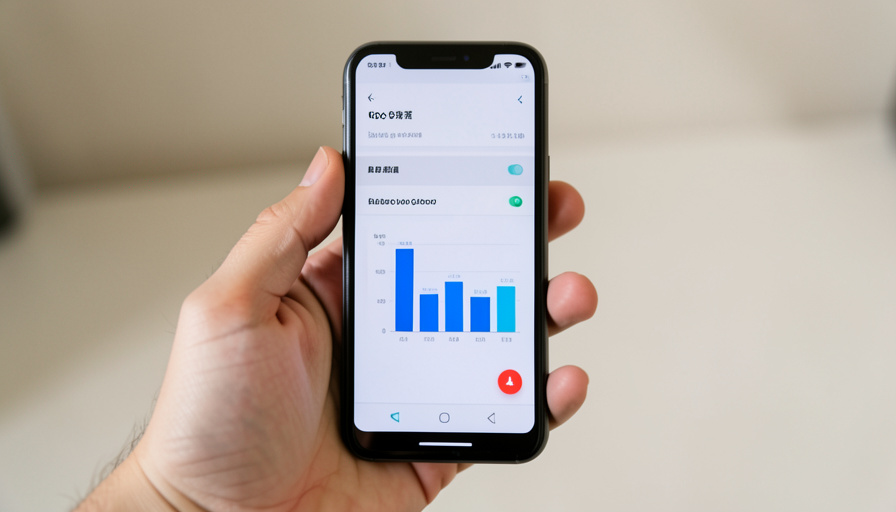
When drain is real, it is usually concentrated in a small number of apps rather than spread everywhere. Open Settings and the battery usage screen, which ranks what is consuming power, and look for anything unexpected high on the list, especially something running heavily in the background. Update that app, force-stop it, or restrict its background activity, and if it is a known offender, uninstall and reinstall it. The usage chart points you straight at the culprit in seconds.
3. A wiped adaptive battery profile
Here is the fix people never think of. Android learns which apps you rarely use and throttles their power, but a major update can erase that learned data, so the phone temporarily stops throttling anything and drains faster. To force it to rebuild, go to Settings, Apps, see all apps, Device Health Services, then Storage and cache and clear its data. Keep Adaptive Battery turned on, and over the next days the system relearns your habits and tightens power use again.
4. Location and permissions turned back up
Updates sometimes reset or re-enable permissions, and location is the hungriest of them. Check which apps have location access and set anything that does not need constant tracking to “while using the app,” and turn off precise location where it is unnecessary. An app quietly given always-on, high-accuracy location after an update can drain a battery all by itself, so this is worth a two-minute review.
5. Background refresh and sync running hot
Background data and auto-sync can spin up after an update, with apps refreshing feeds, email, and cloud backups more than you need. Restrict background usage for heavy apps you do not need updating constantly, and review your account sync settings. Email, social, and cloud-storage apps are the usual suspects here, and reining in their background activity noticeably steadies the battery without costing you anything you actually use.
6. Connectivity thrashing
A phone that constantly hunts for signal is a phone that drains. After an update, weak reception, always-on 5G in a poor-coverage area, and background Wi-Fi and Bluetooth scanning can all keep the radios working overtime. Use adaptive connectivity if your phone offers it, so it drops to a more efficient network when 5G is not helping, and turn off Wi-Fi and Bluetooth scanning in location settings. In a bad-signal spot, this alone can rescue hours of battery.
7. Display settings
The screen is usually the single biggest battery user, and update-related drain gets worse if the display is set aggressively. Lower the brightness or use adaptive brightness, consider dropping a high refresh rate from 120Hz to 60Hz if you want maximum endurance, and check whether an always-on display is enabled. None of these are caused by the update directly, but they amplify any extra drain it introduced, so trimming them buys back real time.

8. A genuine bug in the update
Sometimes it really is the update. In 2026, a Pixel update broke how the Tensor chip entered deep sleep, causing heavy idle drain across many models until Google shipped later patches to fix it. When a specific update is the cause, the answer is another update, so install the newest security patch available, since manufacturers frequently release a follow-up that corrects a battery regression. Checking for a newer patch should be a standard step, not a last resort.
9. Stale cache and a clean restart
Finally, the humble reset. Leftover cache and lingering processes from the update can keep the phone busier than it should be. Restart the phone first, since many people never do after an update, and clear the cache of any misbehaving app. If drain is severe and you cannot find the cause, booting into safe mode temporarily disables downloaded apps, which quickly tells you whether a third-party app or the system itself is responsible.
This article is general troubleshooting information. If severe battery drain continues after updating to the latest patch and trying these steps, back up your phone and consider your manufacturer’s support, since persistent issues can occasionally indicate aging hardware.
Frequently asked questions
Is it normal for battery to drain after an Android update?
Yes, for a day or two. The phone recompiles apps and re-optimizes the system in the background, which uses extra battery and heat temporarily. Charge it overnight on Wi-Fi and judge the battery after about two full days before assuming something is wrong.
How do I find what is draining my Android battery after an update?
Open Settings and the battery usage screen, which ranks apps and services by power use. Post-update drain is usually concentrated in one or two apps, so look for anything unexpectedly high, then update, restrict, or reinstall it.
How do I reset Android’s adaptive battery after an update?
Go to Settings, Apps, see all apps, Device Health Services, then Storage and cache and clear its data, and keep Adaptive Battery on. This forces the system to rebuild the learned profile it uses to throttle rarely used apps, which an update can erase.
Can an Android update itself cause battery drain?
Yes. Some updates contain bugs that hurt battery life, as happened with a 2026 Pixel update affecting deep sleep. When the update is the cause, installing the next security patch, which often includes a fix, is usually the solution.
How long should I wait before worrying about battery drain?
About two full days of normal use. The first hours after an update show higher drain from background optimization that is not a real problem. If heavy drain persists past that window, then it is worth working through the specific culprits.
The bottom line
Battery drain after an Android update is usually a mix of normal re-optimization that passes in a day or two and one fixable culprit underneath. Give it two days on a charger overnight, then check the battery usage screen for a rogue app, rebuild the adaptive battery profile, tame location and connectivity, and install the latest patch in case the update itself was the bug. Work down that list and the phone almost always returns to normal. For more device fixes, browse The Other Stream’s Tech section, and see our guide to fixing iPhone Wi-Fi drops after an iOS update.
Related Posts