
Five Life360 alternatives that keep a family’s locations in view without licensing them to advertisers, with what each one costs, which phones it works on and where it falls short.
In July 2026, a teenager on Reddit’s privacy forum posted a familiar family dilemma: “My dad wants us to keep using a family tracker, but I found out that Life360 sells your data.” They asked for an Android-friendly app that works like Life360 without the data side. It is a fair question, and one more parents are asking. Life360 is useful, popular and easy to set up. It also says, in its own privacy policy, that it licenses precise location data to business partners. If you want the check-ins without that trade, the options are better than they used to be.
The best Life360 alternatives for privacy-minded families in 2026 are:
- Apple Find My: best for all-iPhone families
- Google Location Sharing: best free option for mixed Android and iPhone families
- Google Family Link: best for younger kids on Android phones
- Bark: best paid app with arrival alerts and parental controls
- OwnTracks: best self-hosted option where no company holds your data
Quick Picks
| App | Best For | Price | Platforms | Arrival Alerts | Sells Location Data? |
|---|---|---|---|---|---|
| Apple Find My | All-iPhone families | Free | iPhone, iPad, Mac, Apple Watch | Yes | No, per Apple |
| Google Location Sharing | Mixed-phone families | Free | Android and iPhone | Yes, if allowed by each person | No, per Google |
| Google Family Link | Younger kids on Android | Free | Parent: Android or iPhone; child: Android or Fitbit | Yes, for family places | No, per Google |
| Bark | Alerts plus parental controls | From $14 a month | iPhone, Android, Bark Phone and Watch | Yes | No, per Bark’s policy |
| OwnTracks | Self-hosting families | Free apps; you pay for a server | Android and iPhone | Through server tools | No company involved |
Table of Contents
Why families look for Life360 alternatives
The concern is not a rumor. Life360’s privacy policy says it licenses “certain information, including precise geolocation data” to “select business partners for their own advertising and monetization purposes.” A notice for Texas residents in the same policy is blunter: “We may sell your sensitive personal data.” The policy also describes sharing aggregated, de-identified data to help insurers understand driving behavior and retailers choose store locations.
The business behind it is large. Life360 reported about 95.8 million monthly active users at the end of 2025. Its “other revenue,” which Life360 says includes data and partnership revenue along with advertising, rose to $68.4 million for the year from $36 million in 2024. None of that makes the app unsafe to use, and Life360 does offer opt-outs, covered below. It does explain why families who care about privacy keep asking for alternatives.
1. Apple Find My
Best for: Families where everyone already uses an iPhone.
If every phone in the house is an iPhone, you may not need another app at all. Find My is built into iPhone, iPad, Mac and Apple Watch, and it covers the features most families use Life360 for. You can share your location with family members and see everyone on one map, and get notified when a child arrives at school or a partner leaves work. Apple notes that each person gets the choice to opt in to those notifications, which makes the setup feel less like surveillance.
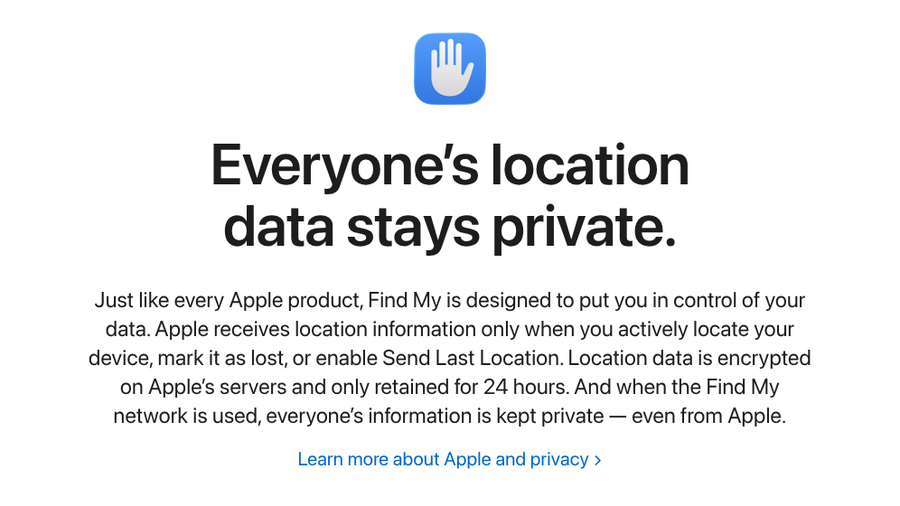
The privacy story is the main reason to pick it. On its Find My page, Apple says location data “is encrypted on Apple’s servers and only retained for 24 hours.” It adds that when the wider Find My network is used, everyone’s information is kept private “even from Apple.” Apple’s privacy policy also states that Apple does not sell your personal data, which is why commenters in the same July privacy thread kept pointing to Apple’s built-in sharing.
Find My also has a few tricks Life360 cannot match on its own. On iPhone 14 or later, you can share your location over satellite when you are out of cell and Wi-Fi coverage, which is useful for hikes and road trips. Younger kids who do not have an iPhone can share location from a cellular Apple Watch set up by a parent.
The limits are clear. Find My only runs on Apple devices, so one Android phone in the family breaks the plan. It also skips extras such as driving reports and a family chat, and it has no dedicated parent dashboard beyond the map and notifications.
- Pros: Free and already installed, strong privacy promises from Apple, arrival and departure alerts, and satellite location sharing on newer iPhones.
- Cons: Apple devices only, no driving reports, and fewer family-management features than Life360’s paid tiers.
Pricing: Free with Apple devices.
2. Google Location Sharing
Best for: Mixed families with both Android phones and iPhones.
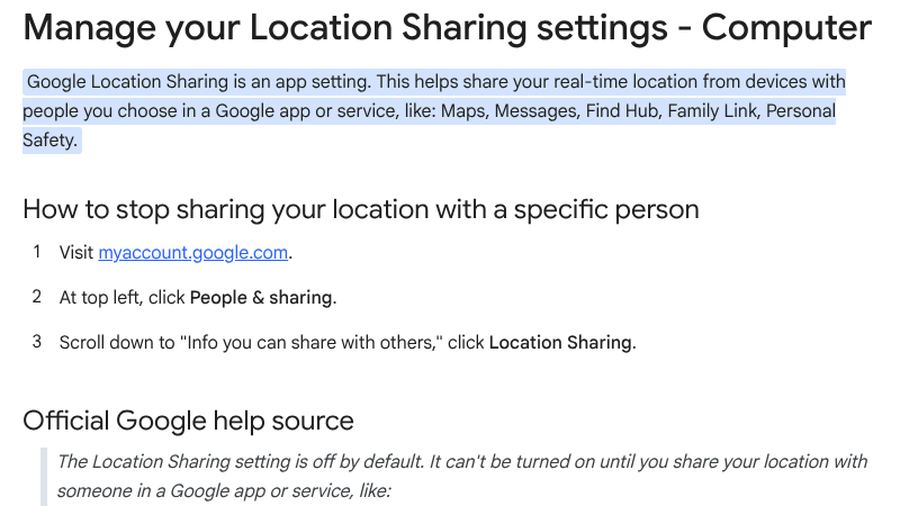
Google’s location sharing is the easiest free answer when one parent has an iPhone and a teenager has an Android. It runs through Google Maps on both platforms. Google now treats it as one account setting that works across Maps, Messages, Find Hub and Family Link. You choose exactly who sees your location, and you can share for a set time or until you turn it off.
People you share with can see your name, profile photo, real-time location and battery level, and sometimes where you have recently been. For each person, you decide whether they are allowed to create notifications about you, such as an alert when you arrive home. The setting is off by default and only turns on once you share with someone, so no one is added to a map by accident.
On privacy, Google’s explanation of its business model says plainly: “We don’t sell your personal information to anyone.” The same page is honest about the trade-off. Google uses personal information to make its products more helpful and to show more useful ads based on your interests. So the data is not sold to third parties, but it does live inside an advertising company. Families who are comfortable with a Google account already have most of what they need.
In a September 2026 thread from an Android and iPhone couple looking for something that would not sell their data, the most practical reply was the simplest: Google Maps, which most people already have installed. You can stop sharing with any single person from your Google Account’s People and sharing settings.
- Pros: Free, works on Android and iPhone, per-person control over who can set alerts, and no extra app for most families.
- Cons: Requires a Google account for everyone, runs inside an ad-funded company, and lacks family features such as driving reports or check-in buttons.
Pricing: Free.
3. Google Family Link
Best for: Parents of younger kids with Android phones or Fitbit devices.
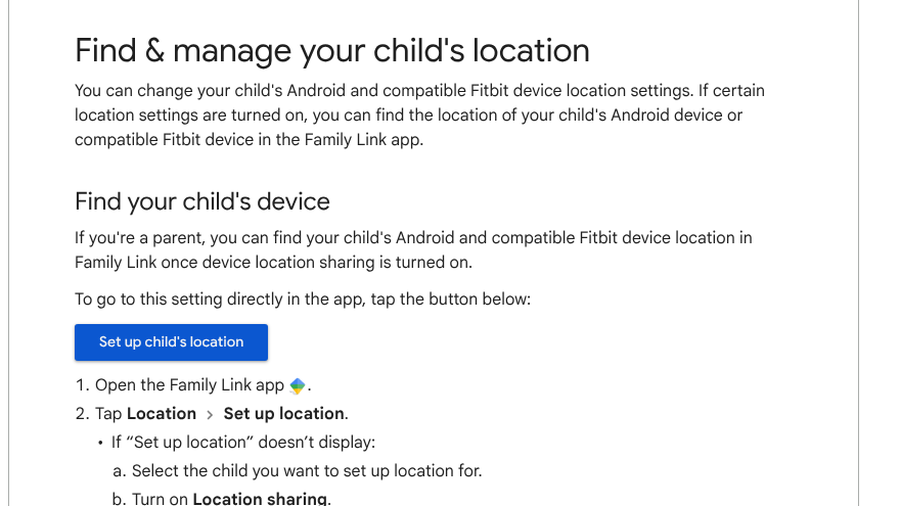
Family Link is Google’s parental control app, and location is one of its core features. Google’s Family Link help explains that parents can find their child’s Android phone or compatible Fitbit device once location sharing is turned on. The parent app runs on both Android and iPhone, so an iPhone-using parent can still supervise a child’s Android phone.
The location tools go beyond a dot on a map. Parents can save family places such as home and school, then set up location notifications for when a child arrives at or leaves those places. Google’s steps also include a setting for higher location accuracy on the child’s device. The same app handles screen time limits and app approvals, which is useful for kids getting their first phone.
Family Link sits under the same Google privacy commitments as Location Sharing, including Google’s statement that it does not sell personal information. It also connects to Google’s regular location sharing, so a supervised child can share their location in Google Maps with parents in the family group.
Setup takes a few minutes. In the Family Link app, tap Location, choose Set up location and turn on location sharing for each child. Google notes that it can take some time to find a child’s device the first time, so set it up at home before you need it.

The catch is age and hardware. The child needs an Android device or compatible Fitbit, and supervision is designed for younger kids. Family Link works best as a first-phone tool, and many families move to regular Google location sharing as kids get older and want more say in who sees their location.
- Pros: Free, arrival and departure alerts for saved places, screen time and app controls in the same app, and a parent app for both platforms.
- Cons: The child must use Android or Fitbit, it is built for younger kids rather than teens, and it can feel heavy-handed for older children.
Pricing: Free.
4. Bark
Best for: Parents who want Life360-style alerts plus content monitoring in one paid app.
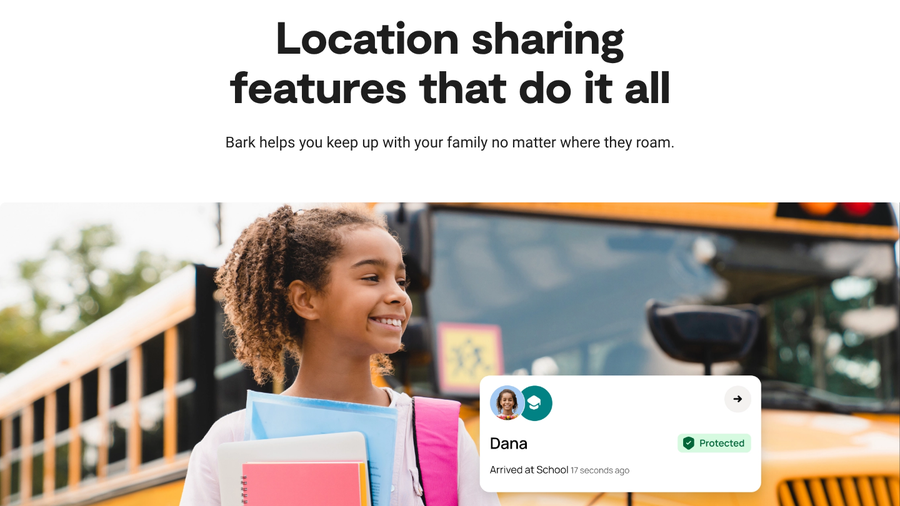
Bark is best known for monitoring kids’ texts and social media for signs of bullying, predators and self-harm, but its location features cover most of what Life360 families use. Bark’s location sharing page lists check-ins, alerts when kids get to school or back home, trip tracking, a view of everyone’s location at once and location details if a child dials 911.
The privacy terms are the reason it makes this list. Bark’s privacy policy, effective March 15, 2026, states: “We will never sell or rent your Data to third parties.” It adds that Bark “never sells the personal or sensitive information it collects for monetary consideration” and does not use that information for profiling or targeted marketing. Bark says it may share aggregated, anonymized data with service providers and affiliates for analysis, which is worth knowing but is a long way from licensing precise location to ad partners.
Bark works on iPhones and Android phones through its app, and it sells its own Bark Phone and Bark Watch with monitoring built in. The watch is a good fit for younger kids who are not ready for a smartphone but need to be reachable.
The trade-off is cost and intensity. Bark is a paid service, and its monitoring goes far beyond location. For an older teen, that level of oversight can feel like a lot, so talk about what you are turning on and why.
- Pros: Clear no-sale privacy policy, arrival and school alerts, unlimited devices on one plan, and content monitoring that Life360 does not offer.
- Cons: Monthly cost, monitoring may feel invasive for older teens, and the best experience comes with Bark’s own devices.
Pricing: The Bark App starts at $14 a month with a seven-day free trial. The Bark Watch is $15 a month plus $10 a month for 24 months for the device, and the Bark Phone starts at $29 a month plus a device payment.
5. OwnTracks
Best for: Tech-comfortable families who want no company in the middle.
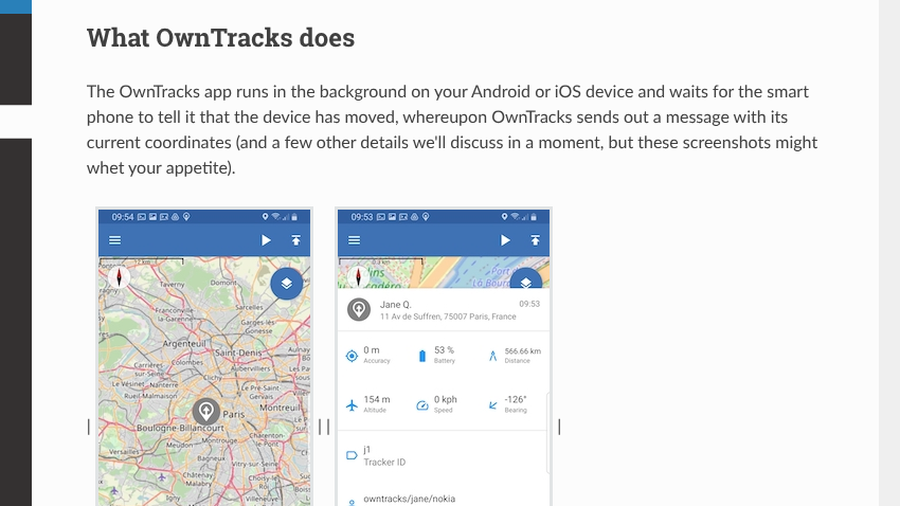
OwnTracks takes the most direct route to privacy: no business sits between your family and its location data. It is a free, open-source app for Android and iPhone that runs in the background and sends your location to a server you choose, rather than to a company’s cloud. The OwnTracks documentation explains that the app contacts either an HTTP web server or an MQTT server whenever the phone has moved a significant distance, and queues updates until it has a connection.
Because you run the server, you decide who can see the data and how long it is kept. Family members who connect to the same server can see each other on the map, and the app shows details such as battery level and accuracy. OwnTracks can also detect when a phone enters or leaves a region you define with a geofence, which is the building block for home and school alerts. It reports each phone’s battery level remotely, too, so you can tell a dead phone from a missing one. Nobody is licensing your location, because nobody else has it.
That control comes with work. Someone in the family has to set up and maintain the server, keep it secure and troubleshoot when a phone stops reporting. OwnTracks is a good fit for a household with a home server or a parent who enjoys this kind of project. Commenters in 2026 privacy threads also mentioned similar self-hosted tools such as Traccar and Dawarich for families who want the same approach with different features.
- Pros: Open source, free apps on both platforms, your family’s data stays on a server you control, and no advertising or data business behind it.
- Cons: Requires setting up and maintaining a server, fewer polished alerts than Life360, and not realistic for non-technical families.
Pricing: Free apps. You pay for whatever server you run it on.
Switching away from Life360 without a family fight
The hardest part of switching is usually people, not technology. Set up the new app with everyone together, confirm each person can see the others, and only then leave your Life360 Circle. If some relatives stay on Life360, you can still limit what it uses: the policy says members can opt out of aggregated data uses through the “Traffic & Retail Insights” option under Privacy in the app’s settings, and use the “Your Privacy Choices” and “Trusted Partners” settings in the same Privacy section to limit sharing with partners and for targeted advertising.
With teenagers, explain why you are sharing locations and agree on when it applies. A tool that everyone agreed to is harder to bypass than one that was installed without a conversation. For more on keeping kids’ locations private, see our guide to family photo habits that reveal your kid’s location, and if you are updating family accounts at the same time, our list of questions to ask before switching your family to passkeys.
How We Chose These
We started with the features families rely on most in Life360: a shared map, arrival and departure alerts, and support for the phones families own. We then read each company’s current privacy policy or official privacy statements, and only included options that state they do not sell personal information or that keep data entirely under the family’s control. We also weighed cost, setup effort and how well each option fits different ages, from first-phone kids to adults sharing with a partner. Finally, we checked feature and pricing details against each company’s own pages in fall 2026.
The Bottom Line
For all-iPhone families, Apple Find My is the easiest switch and has the strongest privacy promises. Mixed households should start with Google Location Sharing, and parents of younger Android users can add Family Link. If you want alerts plus monitoring and do not mind paying, Bark’s no-sale policy is clear. For total control, OwnTracks keeps your family’s locations on your own server.
Frequently Asked Questions
What is the best Life360 alternative?
The best Life360 alternative for all-iPhone families is Apple Find My, which is free and built in. For families with both Android phones and iPhones, Google Location Sharing in Google Maps is the best free option.
Does Life360 sell your data?
Life360’s privacy policy says it licenses certain information, including precise geolocation data, to select business partners for their own advertising and monetization purposes. It also shares aggregated, de-identified data with partners such as insurers and retailers, with opt-outs in the app.
Can Android and iPhone users share locations without Life360?
Android and iPhone users can share locations through Google Maps, which runs on both platforms. Each person needs a Google account and chooses who can see their location and for how long.
How do I stop Life360 from using my data?
Open the Life360 app, go to the Privacy section in account settings and turn off “Traffic & Retail Insights.” Then use the “Your Privacy Choices” and “Trusted Partners” settings in the same section to limit sharing with business partners and for targeted advertising.
Is Apple Find My safer than Life360 for privacy?
Apple says Find My location data is encrypted on its servers and retained for only 24 hours, and its privacy policy states that Apple does not sell personal data. For families who all use Apple devices, it is the more private choice.
Related Posts