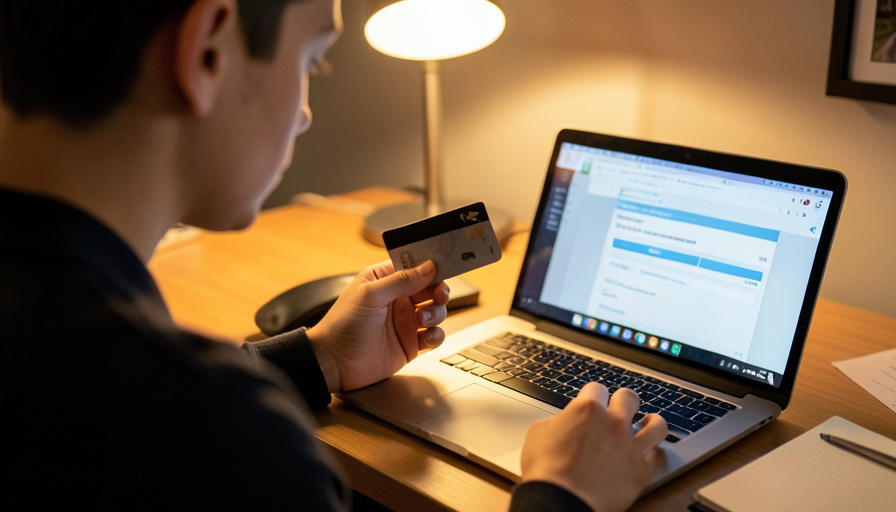
Before an online exam, a proctoring app asks you to install it and grant a list of permissions, and most students click through without reading. But there is a real difference between what an app needs to watch you take a test and what some of them actually request. Watching your camera during the exam is reasonable. Logging every key you press, reading your files, or taking control of your computer is a different thing entirely.
You may not always be able to refuse and still take the exam, but you can know what you are agreeing to, tell the normal from the excessive, and raise concerns with the right people. Here are eight permission requests that should give you pause, and what is actually standard.
In brief
Some proctoring access is normal: using your webcam and microphone during the exam, locking you into a full-screen or lockdown browser, and installing a browser extension for the test. The red flags are the permissions that reach far beyond the exam itself: keystroke logging, reading your files or clipboard, seeing your full browser history and other accounts, listing everything installed and running, remote control of your device, asking you to disable your antivirus, and deep root or administrator access. Know which is which, ask your school what is collected and how long it is kept, and consider a separate device or account if the access worries you.
Table of Contents
What proctoring apps normally need
To be fair before the red flags, some access is expected and reasonable for remote proctoring. An app legitimately needs your webcam and microphone to watch and listen during the exam, a lockdown or full-screen mode that stops you opening other apps or tabs while the test runs, and usually a browser extension or a dedicated app to enforce that. Those are the tools of watching a test, and they switch off when the exam ends. The concern is not proctoring itself; it is permissions that go well past watching an exam and into monitoring your whole computer and life.
1. Keystroke logging
An app that records every key you press is capturing far more than your exam answers. Keystroke logging can sweep up passwords, messages, and anything else you type, during and potentially around the exam, which is a serious overreach for verifying a test. Watching your screen and camera is enough to see whether you are cheating. If the permissions or documentation mention logging your keystrokes, treat it as a red flag worth questioning before you install.
2. Reading your files or clipboard
A proctoring tool does not need to open your documents or read what is on your clipboard to watch you take a test. Permission to scan your files or access clipboard contents means the app can see personal data that has nothing to do with the exam. This is well beyond what proctoring requires. If an app wants access to your file system or clipboard, ask why, because the honest answer for exam integrity is that it should not need it.
3. Your full browser history and other accounts
Locking your browser during the exam is normal; reading your entire browsing history and logged-in accounts is not. Some tools request access that lets them see your other tabs, saved logins, or history beyond the test window. That reaches into your private online life rather than the exam session. A proctoring app should be concerned with the exam tab and nothing else, so access to your broader browsing or accounts is a signal to slow down and ask.
4. A list of everything installed and running
Some apps inventory your whole system: every program installed and every process running. There is an argument that it checks for screen-sharing or cheating tools, but a full inventory of your software is also a detailed picture of you, and it can feel invasive. It sits in a gray area, more justifiable than reading your files but still worth understanding. Ask what is done with that list and how long it is kept, because a snapshot of everything on your machine is sensitive information.
5. Remote control of your device
There is a difference between a proctor watching your screen and a proctor being able to control your computer. Permission that allows remote control, taking over your mouse and keyboard rather than just viewing, is a significant power to hand over. Viewing your screen during an exam is defensible; letting someone operate your machine is a much bigger step. If the access includes remote control rather than remote viewing, that distinction is worth raising.
6. A request to disable your antivirus or firewall
This one is a bright red flag on its own. No legitimate exam tool should need you to turn off your antivirus or firewall to run, and doing so leaves your computer exposed. Malware often asks users to disable their protections; trustworthy software works alongside them. If installing a proctoring app requires switching off your security, stop and check with your school first, because that request undermines your device’s safety for the sake of a test.

7. Root, administrator, or kernel-level access
Deep system access, root on a Mac or Linux machine, full administrator rights, or kernel-level installation, gives software near-total control of your computer. Some proctoring tools install at this level to enforce lockdown, but it is the most powerful access you can grant, and it can be hard to fully remove afterward. Understand if an app is asking for this depth of control, and consider using a separate or loaner device for the exam if you are not comfortable granting it on your main machine.
8. Camera and mic access that outlives the exam
Webcam and microphone use during the test is expected, but access that stays active before or after, or that the app can invoke outside the exam, is not. The concern is whether the camera and mic are on only for the exam window or more broadly, and whether recordings are stored and for how long. Related permissions like location tracking or scanning your local network also go beyond watching a test. Confirm that the monitoring is limited to the exam and ask how long any recording is retained.
Your rights and what to ask
You have more standing here than it feels like at exam time. Before installing, read the permissions and the privacy policy, and ask your instructor or school what data the tool collects, where it is stored, who can access it, and how long it is kept, since many institutions must answer that and some jurisdictions limit what proctoring can do. If a permission worries you, raise it early rather than minutes before the exam, and ask whether an alternative is available, such as an in-person option or a different assessment. Using a separate user account or a loaner device for the exam can also limit what the app sees. Privacy advocates like the Electronic Frontier Foundation have documented these concerns and your options in detail. For help with the technical side of getting through the exam itself, see our guide to fixing a failing proctoring environment scan.
This article is general information, not legal advice. What proctoring software collects and your rights around it vary by school, vendor, and jurisdiction, so review the specific tool’s privacy policy and your institution’s rules, and raise concerns through your school’s official channels.
Frequently asked questions
What proctoring permissions are normal?
Using your webcam and microphone during the exam, locking you into a full-screen or lockdown browser so you cannot open other apps, and installing a browser extension or app to enforce that. These relate directly to watching the test and end when the exam does. Access that reaches beyond the exam is where the concern begins.
Is it normal for a proctoring app to log my keystrokes?
It is a red flag. Watching your screen and camera is enough to check for cheating, so recording every key you press captures far more than your exam answers, potentially including passwords and messages. If a tool logs keystrokes, question it with your instructor or school before installing.
Should a proctoring app ask me to disable my antivirus?
No. No legitimate exam tool should require you to turn off your antivirus or firewall, and doing so exposes your computer. That request is a serious warning sign, since trustworthy software runs alongside your security. If installation demands it, stop and check with your school first.
Can I refuse a proctoring app’s permissions?
Sometimes the exam requires them, but you can still ask what is collected, request an alternative assessment, and raise concerns with your instructor or school. Reviewing the permissions and privacy policy first, and using a separate account or loaner device, gives you more control over what the app can access.
How long does proctoring software keep my recordings?
It varies by vendor and school, which is exactly why it is worth asking. Find out what is recorded, where it is stored, who can view it, and the retention period. Many institutions can answer these questions, and some regions limit how proctoring data is collected and kept, so you are within your rights to ask.
The bottom line
Proctoring an exam justifies watching your camera and locking your browser, not reading your files, logging your keystrokes, or taking over your computer. Learn to tell the normal permissions from the overreaching ones, treat requests to disable your antivirus or grant deep system access as red flags, and ask your school what is collected and kept. Raise concerns early, and use a separate device if the access worries you. For more on studying and school technology, browse The Other Stream’s Education section.
Related Posts