What the Microsoft account problem notification means, why Windows 11 keeps asking you to sign in, and nine fixes for the loop, from stale credentials to Authenticator dead ends.
In July 2026, a Windows 11 user on Reddit asked how to stop a notification that kept popping up on one of their PCs. Both of their computers used local accounts, the settings matched, and they were not signed in to anything. Only one machine kept warning about a Microsoft account problem. Stories like that are common, and so are their cousins: apps that ask you to sign in after every restart, codes that lead to more codes, and PIN prompts that reject the PIN you use every day. Most of them trace back to the same few causes.
Quick Answer
A Microsoft account problem notification or sign-in loop usually means Windows or an app is holding an old sign-in token, often after a password change or a switch to passwordless sign-in. Remove stale accounts under Email & accounts, clear saved Microsoft entries in Credential Manager and sign in again. If the loop involves Authenticator or recovery codes, use Microsoft’s Sign-in Helper.
Table of Contents
What the Microsoft account problem notification means
The notice usually reads “We need to fix your Microsoft account (most likely your password changed)” and points you to shared experiences settings. In practice, it means a Microsoft account saved on the PC needs you to sign in again. That account does not have to be the one you use to log in to Windows. An account added once for Office, OneDrive, the Microsoft Store or Xbox can also be behind it, which is why local-account users still see the notice.
Why Microsoft keeps asking you to sign in
Microsoft has been moving away from passwords, and the change shows up as unfamiliar prompts. In a May 2025 security blog post, Microsoft said brand new Microsoft accounts would be “passwordless by default.” It also said sign-in would automatically pick the best method on your account. If you have a password and one-time codes set up, you get a code instead of a password prompt, then a request to enroll a passkey.
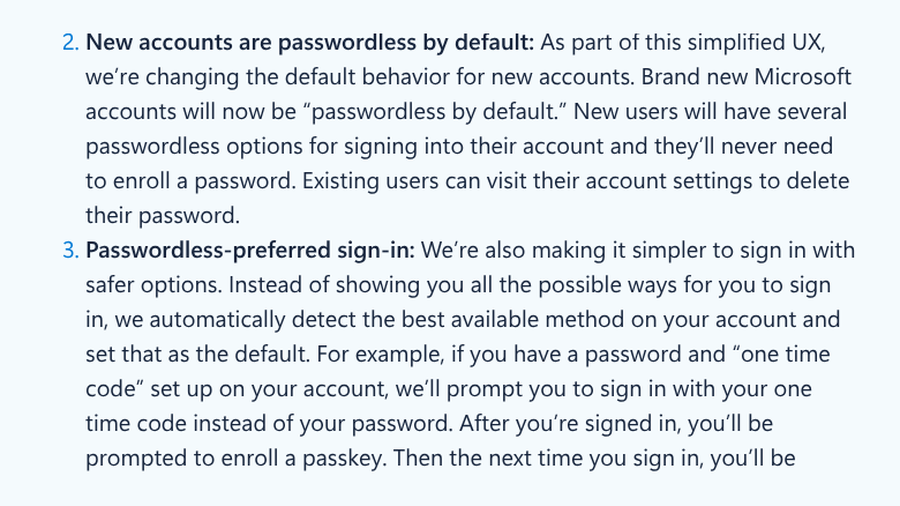
Microsoft’s reasoning is that passkey users get into their accounts far more often, about 98% of the time compared with 32% for password users. The side effect is that anyone who expects a password box sees codes and passkey requests instead, and a saved password on the PC can stop matching what the account expects.
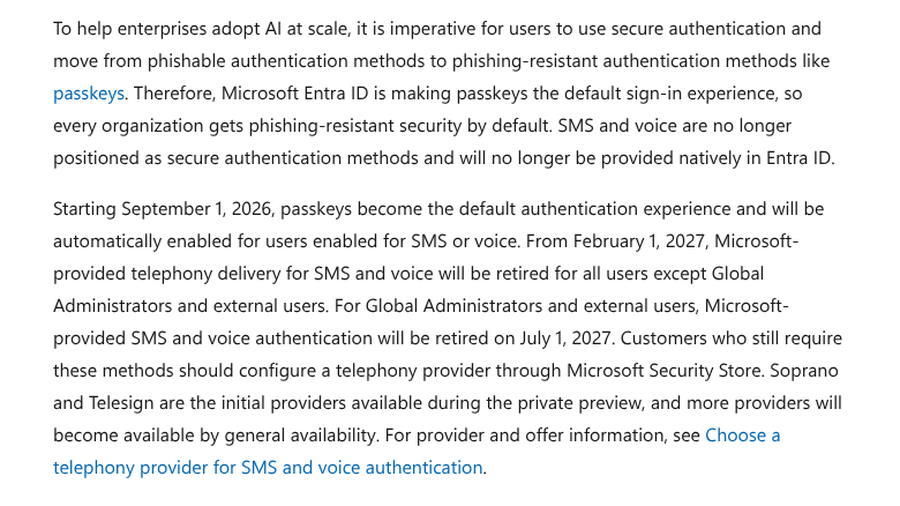
Work and school accounts are changing too. According to Microsoft’s Entra documentation, starting September 1, 2026, passkeys become the default authentication experience for organizations using Microsoft Entra ID. Users set up for text or voice codes will be prompted to register a passkey the next time they complete multifactor sign-in. Microsoft-provided SMS and voice delivery is set to retire for most users on February 1, 2027. If you use a work or school account on a personal Windows 11 PC, expect passkey registration prompts as the rollout reaches your organization.
9 fixes for a Microsoft sign-in loop on Windows 11
1. Use the Verify link in Your info
Open Settings, then Accounts, then Your info. If Windows says you need to verify your identity, select Verify, complete the prompt and restart.
2. Remove old accounts used by other apps
Go to Settings, then Accounts, then Email & accounts. Under “Accounts used by other apps,” remove any Microsoft account you no longer use or that belongs to someone else. In February 2026, a Microsoft support moderator told a user stuck in an Office PIN loop to remove all accounts listed there, because Office was picking up cached credentials from an old Microsoft 365 subscription.
3. Clear saved Microsoft entries in Credential Manager
Windows stores sign-in tokens that can go stale after a password or security change. Microsoft’s Credential Manager guide explains how to open it: search for “credential manager” on the taskbar, then choose Web Credentials or Windows Credentials. Remove entries related to Microsoft, Office or Outlook, restart and sign in again.
4. Sign out of Office apps everywhere
Open Word or Excel, go to File, then Account, and sign out. After a restart, sign back in with the account that owns your license. You can confirm which account holds it by signing in at account.microsoft.com/services.
5. Pick another sign-in method when a PIN or passkey fails
If a prompt asks for a PIN or passkey that will not work, look for More options or Use your password instead. Microsoft’s support moderator gave the same advice in the PIN loop case: choose the password option, then enter the password for the right account rather than the Windows PIN.

6. Turn off Share across devices to stop the notification
If you do not use cross-device features, you can stop the reminder from appearing. In Windows 11, go to Settings > Apps > Advanced app settings and turn off Share across devices. This hides the symptom, so try fixes 1 to 3 first if the account still matters to you.
7. Break an Authenticator loop with another method
A common trap: the sign-in page asks for a code from Microsoft Authenticator, and the app asks you to sign in first. In July 2026, a user who sold their old phone described being stuck in exactly that loop on a work account. For work or school accounts, your IT admin can reset your sign-in methods. For personal accounts, use a backup method such as an email code or recovery code. Our guide to moving Authenticator without your old phone covers what to set up before the next upgrade.
8. Update Windows and your apps
Install pending updates for Windows, Office and Microsoft Store apps, then restart. It rules out an app bug before you start deleting accounts. If an update fails along the way, our list of Windows 11 update error fixes can help.
9. Use the Sign-in Helper or account recovery
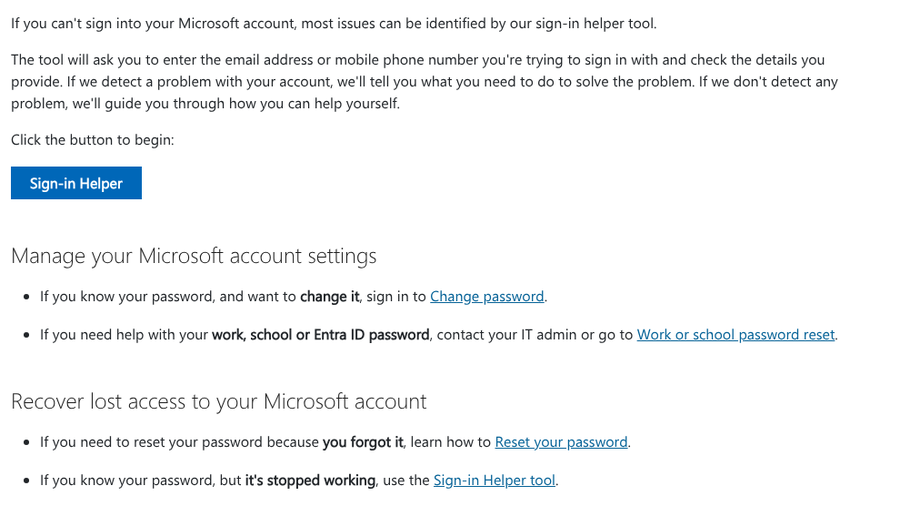
When nothing on the PC helps, the problem may be the account itself. Microsoft’s page for when you can’t sign in to your Microsoft account says most issues can be identified by its Sign-in Helper tool, which checks your email or phone number and tells you what to do next. If you have lost your sign-in methods, the account recovery form is the last step.
When the loop is someone else
Not every repeated prompt is a glitch. In May 2026, Reddit users described Microsoft sign-in requests they had not started, arriving hourly even after a password change. If you get an approval request you did not trigger, deny it and check recent activity on your account’s security page. Moving to a passkey helps here, because there is no password for an attacker to keep trying. Our guide to passkey problems on iPhone, Android and Windows covers setup snags.
Key Takeaways
- The Microsoft account problem notice usually means a saved account on the PC can no longer sign in quietly.
- Remove stale accounts under Email & accounts and clear Microsoft entries in Credential Manager.
- Passwordless sign-in and new passkey defaults explain many unexpected code and passkey prompts.
- For Authenticator loops or lost sign-in methods, use a backup method, your IT admin or the Sign-in Helper.
Frequently Asked Questions
What does “Microsoft account problem” mean on Windows 11?
The Microsoft account problem notification means a Microsoft account saved on your PC needs you to sign in again, often after a password change. Select Verify in Settings, Accounts, Your info, or remove the account if you no longer use it.
Why does Microsoft keep asking me to sign in?
Microsoft keeps asking you to sign in when Windows or an app holds an expired token, or when your account has switched to codes or passkeys. Clearing old credentials and signing in once with the correct method usually stops the prompts.
How do I stop the Microsoft account problem notification?
Fix the account by verifying it or removing it from Email & accounts. If you do not use cross-device features, turning off Share across devices in Advanced app settings also stops the notice.
How do I get out of a Microsoft Authenticator loop?
Use a different sign-in method, such as an email code or recovery code, to get into your account, then set up Authenticator again. For a work or school account, ask your IT admin to reset your sign-in methods.
Why can’t I sign into my Microsoft account on one site only?
A loop on one Microsoft site often comes from cached cookies or a stale token for that service. Try a private browser window, clear Microsoft entries in Credential Manager, and run the Sign-in Helper if the problem continues.
Closing Thoughts
Most Microsoft sign-in loops come from something old: a saved account, an expired token or a sign-in method you stopped using. Clean those out once, sign in with the method your account now expects, and set up a backup method before you need it. The next time Windows asks you to prove who you are, it should take one prompt, not ten.
Related Posts