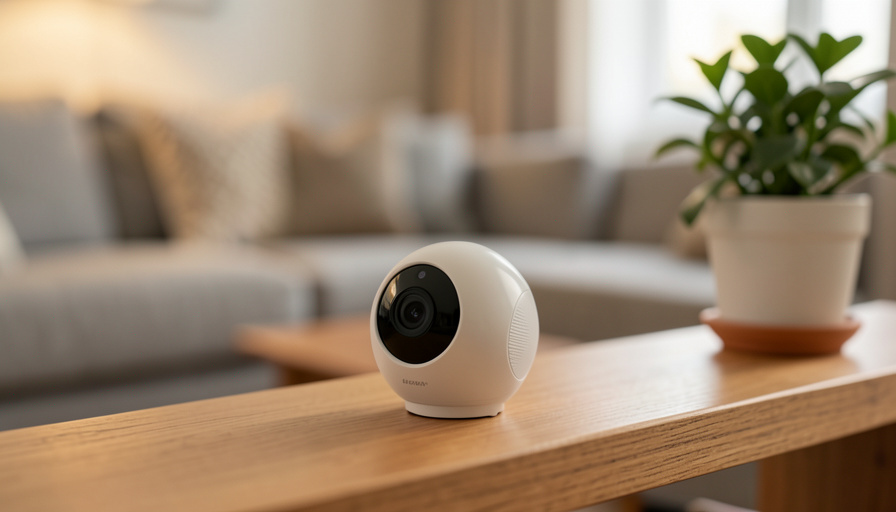
An indoor camera is supposed to work one way: it watches the room so you can check in from your phone, and no one else gets to look. But a smart home camera is only as private as its settings, and several of the defaults quietly widen the audience. A password you never changed, a share link you forgot about, a second sign-in check you skipped, and suddenly the feed of your living room is reachable by people you never invited. The unsettling part is that none of it looks wrong from your side; the camera works fine while a door is left open behind it.
Here are 11 settings that accidentally expose an indoor feed, why each one matters, and the quick fix for it. None require technical skill, and most take a couple of minutes in the camera’s app.
At a glance
The settings that most often expose a home camera’s feed are: two-factor authentication left off, the factory or reused password never changed, remote cloud access enabled when you only view locally, a public or shareable live-view link still active, old shared users and guest access never revoked, UPnP or port forwarding opening the camera to the internet, an unprotected default local stream, firmware auto-updates turned off, motion clips auto-shared to third-party apps, an always-on microphone recording indoor audio, and privacy or activity zones left off so the whole room stays in frame. Fixing them comes down to a few habits: a strong unique password with two-factor on, sharing turned off and old access removed, firmware kept current, and the camera watching only what it needs to.
Table of Contents
1. Two-factor authentication left switched off
Many camera accounts ship with two-factor authentication off, so the account is protected by a password alone. That is a problem because attackers run credential-stuffing attacks, feeding in passwords leaked from unrelated breaches to see which ones open your camera account, and a reused password lets them straight in to watch the live feed. Turning on two-factor authentication adds a second sign-in check, usually a code, that a stolen password cannot get past. It is the single highest-value setting on this list. Enable it on the manufacturer account for every camera you own.
2. The factory default or reused password
A camera that still has its out-of-the-box password, or one you also use elsewhere, is an open invitation. A large share of camera-hijacking incidents trace back to a default password that was never changed or a credential exposed in another site’s breach. Set a long, unique password the moment you install the camera, different from anything else you use, and store it in a password manager rather than reusing a favorite. Pair it with two-factor authentication from the point above, and the most common break-in path closes.
3. Remote cloud access on when you only view locally
Cameras often enable remote viewing through the maker’s cloud by default, which is convenient but means your feed travels to and sits on a company’s servers, expanding who could reach it if that account or service is compromised. If you only ever check the camera at home, you may not need cloud access at all, and some cameras offer a local-only or local-storage mode that keeps the video off the internet entirely. Decide whether you actually use remote viewing; if not, switch to local access, and if you do, make sure the account guarding it is locked down.
4. A public or shareable live-view link left active
Some apps let you generate a share link or public live view so a family member can watch without their own login. The risk is that these links can be forwarded, guessed, or simply left active long after the reason for them passed, and anyone who has the link may reach the feed. Treat a shareable view link like a key: create it only when needed, and revoke it when the moment is over. Check your app’s sharing section for any active links you have forgotten and turn them off.
5. Old shared users and guest access never revoked
Camera apps let you add other people as shared users, and those grants tend to outlive their purpose. A former roommate, an ex-partner, a house guest, or the installer who set the system up may still have access to your indoor feed months later because no one removed them. Open the shared-users or family list in your app and remove anyone who no longer needs to see the camera. Doing this after any change in who lives with you closes a quiet and very personal exposure.
6. UPnP or port forwarding opening the camera to the internet
To reach a camera from outside the house, some setups use UPnP or manual port forwarding on the router, which can place the camera directly on the open internet where scanning tools find it. Exposed cameras get cataloged and probed constantly, and one with weak protection becomes a watchable feed for strangers. Unless you deliberately set this up and know what you are doing, leave port forwarding off and turn off UPnP on the router, relying on the maker’s secure app connection instead. Your feed should not be directly addressable from the public internet.
7. An unprotected default local stream
Cameras that support a local video stream, often over a protocol called RTSP, sometimes enable it with a weak or blank password by default. On your home network that may feel harmless, but combined with the port-forwarding issue above, or anyone else who gets on your Wi-Fi, an open stream is a direct line to the picture. If you use a local stream for a recorder or a dashboard, set a strong password on it; if you do not use it, disable the feature. An unused open stream is only a liability.
8. Firmware auto-updates turned off
Camera makers patch security holes through firmware updates, and a camera running old firmware keeps whatever weaknesses have since been fixed. When auto-update is off, or you dismiss the prompts, the camera slowly falls behind and known flaws stay open on your network. Turn on automatic firmware updates if the camera offers them, and if it does not, set a reminder to check for updates every so often. Keeping the software current is one of the plainest ways to stop a known exploit from reaching your feed.

9. Motion clips auto-shared to third-party apps
Integrations are handy, but a camera set to push motion clips or snapshots to a third-party app, a neighborhood service, or a social feature is copying pieces of your indoor footage somewhere else, under that service’s rules rather than yours. The clip you meant for your own review can end up stored or visible beyond your control. Review which integrations and sharing features your camera has enabled, and switch off any automatic uploads you did not specifically want. Share a clip deliberately when you need to, not on a standing rule.
10. An always-on microphone recording indoor audio
Indoor cameras usually include a microphone, and many record audio by default alongside the video. That means household conversations are captured in the same clips, and in some places recording audio carries its own legal considerations. If you only need to see the room, not hear it, turn the microphone or audio recording off in the settings. Beyond the privacy gain, it means a copied or exposed clip reveals less. Leave audio on only where you have a clear reason and the right to record it.
11. Privacy or activity zones left off
By default a camera captures its entire field of view, which for an indoor unit can mean a doorway to a bedroom, a desk with documents, or the whole living space at all hours. Most cameras let you set privacy zones that black out parts of the frame and activity zones that limit what triggers recording, so the camera watches only what you actually want it to. Point the camera thoughtfully, block out sensitive areas, and narrow its active zone. A camera that sees less of your private space exposes less of it if the feed ever leaks.
How to lock down your camera in a few minutes
You do not need to do all of this at once. Start with the two settings that matter most: set a strong, unique password and turn on two-factor authentication for the camera account. Then open the sharing and shared-users sections and remove any old links or people who no longer need access. Turn on automatic firmware updates, and put the camera on a separate guest Wi-Fi network if your router supports one, so a compromised device cannot reach your main network. Finally, decide what the camera really needs to do: turn off remote access, audio, and integrations you do not use, and set privacy zones for anything sensitive in the frame. The FTC’s guide to securing your internet-connected devices at home is a good reference, and it specifically flags checking your camera’s access logs for unfamiliar logins. If you are still choosing a camera, our guide to renter-friendly camera options without a cloud fee covers models that keep footage local.
This article is general information, not security or legal advice. Camera apps, menu names, and default settings differ by brand and change over time, and audio-recording rules vary by location, so check your own camera maker’s guidance and your local laws, and if you believe a camera has been accessed without permission, change your passwords and contact the manufacturer.
Frequently asked questions
How would I know if my camera feed has been exposed?
You often cannot tell just by watching the feed, since it keeps working normally. The better checks are indirect: review the camera account’s login or access logs for unfamiliar sign-ins or locations, look for shared users and active share links you do not recognize, and watch for the camera moving, talking, or behaving in ways you did not trigger. If anything looks off, change the password, turn on two-factor authentication, and remove any access you do not recognize.
Is a security camera safer stored locally or in the cloud?
Each has trade-offs. Local storage keeps footage off the internet, so there is no cloud account to breach, but you are responsible for securing the device and network it sits on. Cloud storage adds convenient remote access and offsite backup, at the cost of trusting the provider and guarding that account well. For privacy, local-only storage exposes the least, provided your home network and the camera itself are locked down with a strong password and current firmware.
Does turning on two-factor authentication really matter for a camera?
Yes, more than almost any other single step. Attackers commonly get into camera accounts by reusing passwords leaked from other breaches, and a password alone cannot stop that. Two-factor authentication adds a second check that a stolen password cannot pass, which blocks the most common way indoor feeds get hijacked. Turn it on for the manufacturer account of every camera, even if it makes signing in slightly slower.
Should I put my camera on a guest Wi-Fi network?
It is a good idea when your router supports it. Putting cameras and other smart devices on a separate guest network keeps them walled off from your computers and phones, so a weakness in one camera does not open a path to the rest of your devices. It takes a few minutes to set up and adds a useful layer without changing how the camera works day to day. Combine it with a strong password and current firmware.
Can I stop my indoor camera from recording sound?
In most cases, yes. Indoor cameras typically have a microphone or audio-recording setting you can switch off in the app, and doing so means clips capture only video. That is worth considering both for privacy and because audio recording carries legal rules in some places. If you do not need to hear the room, turn audio off; leave it on only where you have a clear reason and the right to record it.
The bottom line
A smart home camera protects your space only when its settings do the same. The feed gets exposed not through some dramatic hack but through ordinary defaults: no second sign-in check, an old password, a forgotten share link, access you never revoked, or a camera pointed at more of the room than it needs. Work through the list, starting with a strong password and two-factor authentication, then trim sharing, access, and what the camera watches. A few minutes of settings turn a camera that could broadcast your living room back into one that only answers to you. For more on protecting your space, browse The Other Stream’s Home Improve section.
Related Posts