
WordPress not sending emails after a host move? Why a migration breaks your mailbox and your site’s messages, the nine usual causes, and a checklist to run before your next move.
In February 2026, a small business on Reddit moved its WordPress site from one host to another and kept its domain and mailboxes where they were. Then email stopped. Staff were not receiving messages, and contact form submissions vanished too. Nothing about the email service had changed, which is exactly why it was confusing. The fix took a DNS update and about 24 hours of propagation. That story is common because a WordPress migration touches more than your website. It often moves your DNS, your server’s IP address and the way outgoing mail leaves the site.
Quick Answer
Email usually breaks after a WordPress migration because switching nameservers dropped your email DNS records. The new host may also treat your domain’s mail as local, or the new server may not be authorized or allowed to send. Copy every email DNS record to the new DNS host before switching, check mail routing, and send site email through an authenticated SMTP service.
Table of Contents
Two kinds of email break in a migration
It helps to separate the two problems, because they have different fixes.
| What stopped | Likely cause | Where to look |
|---|---|---|
| Incoming mail to your mailboxes | Missing or wrong MX records, or the new server delivering mail locally | DNS zone and your host’s email routing setting |
| Emails WordPress sends, such as forms and orders | New server not in SPF, missing DKIM, blocked ports or PHP mail limits | DNS TXT records and your SMTP settings |
| Messages arrive but land in spam | Authentication or DMARC alignment failing | Message headers in a test email |
Why WordPress is not sending emails after a move: 9 causes
1. The nameserver switch replaced your email records
When you point your domain at a new host’s nameservers, that host becomes the source of truth for all your DNS records, and it does not automatically copy your old ones. In a February 2026 r/webdev thread, a Google Workspace user switched DNS to their new web host, which filled the zone with its own default email records. Incoming mail bounced while outgoing mail kept working. Restoring Google’s MX, SPF, DKIM and DMARC records fixed it. For Google Workspace, Google’s MX setup page lists the value as smtp.google.com with priority 1.
2. An automatic DNS scan missed a record
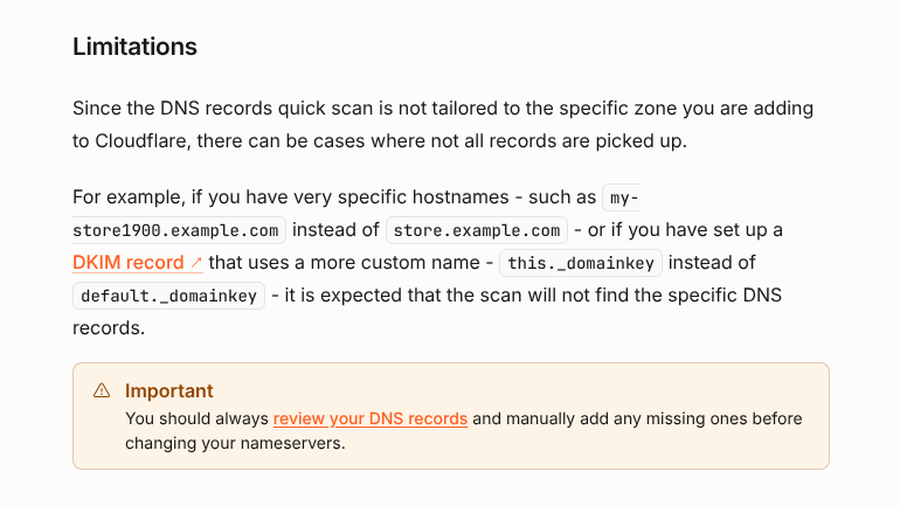
Some DNS providers try to copy your records for you. Cloudflare’s documentation on its DNS records quick scan warns that it will not find everything, including DKIM records with custom names, and says you “should always review your DNS records and manually add any missing ones before changing your nameservers.”
3. The new host thinks it handles your mail
Many web hosts set up a local mailbox system for every domain. If the server believes it is your mail server, messages your site sends to your own address never leave the box. A commenter in the February thread called this the difference between “Deliver Local” and “Deliver to MX.” In cPanel, the Email Routing setting chooses Local Mail Exchanger when your lowest-numbered MX record points to that server, and Remote Mail Exchanger when it points elsewhere. If your mail lives with Google, Microsoft or your registrar, set routing to remote.
4. SPF still lists the old server
Your SPF record is a TXT record that names the servers allowed to send mail for your domain. If WordPress now sends from a new server IP that is not included, receiving providers may reject or spam-folder your site’s messages. Update SPF to include the new server or, better, your SMTP provider. Keep a single SPF record; two separate SPF records for the same domain cause failures.
5. DKIM keys did not come along
DKIM adds a signature that proves a message was not altered and came from an authorized sender. The keys are published as DNS records, often with provider-specific names that are easy to miss in a migration. Re-add the DKIM record from your email provider or SMTP service, and confirm DKIM is still enabled in its settings.
6. Gmail’s authentication rules now apply to you
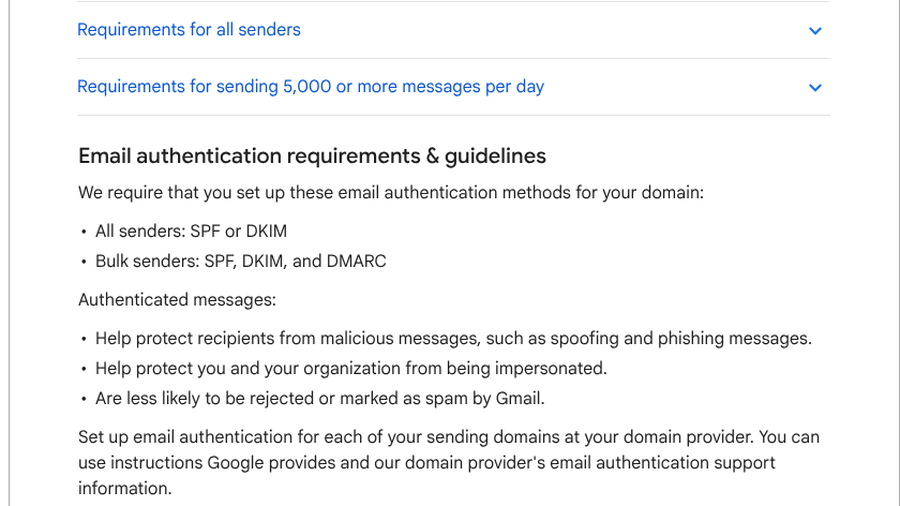
Since February 2024, Google’s email sender guidelines require every sender to Gmail accounts to set up SPF or DKIM. Senders of more than 5,000 messages a day need SPF, DKIM and DMARC. A migration that drops one of those records can push your site’s email straight into spam or get it rejected.

7. WordPress is using PHP mail on a host that limits it
By default, WordPress hands messages to the server’s PHP mail function, and many hosts restrict or unreliably relay that mail. In an April 2026 r/Wordpress thread, a store owner whose order emails and admin address change messages were not arriving fixed it by installing WP Mail SMTP and connecting it to Brevo. Any reputable SMTP plugin connected to a transactional email service or your mailbox provider does the same job.
8. The new server blocks outgoing mail ports
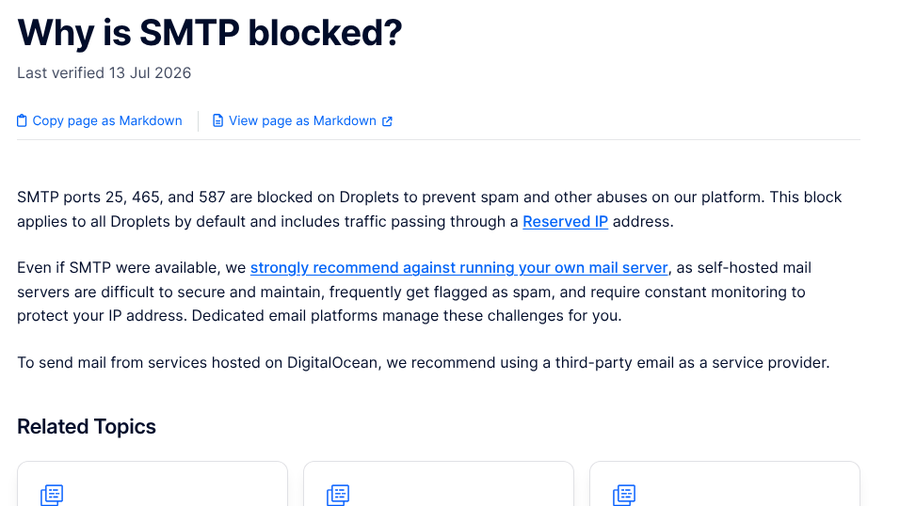
Some cloud hosts block email ports entirely. DigitalOcean’s support page says SMTP ports 25, 465 and 587 are blocked on Droplets by default to prevent spam, and recommends a third-party email service. If your SMTP plugin times out after a move, check if your host blocks these ports and use your provider’s API connection instead.
9. DNS changes have not finished spreading
DNS updates take time to reach every network. In the February case, email started working about 24 hours after the records were corrected. Lower your records’ TTL a day or two before a planned migration so changes spread faster, and do not assume a fix failed until that time has passed.
A pre-migration email checklist
- Export your DNS zone. Screenshot or export every record at your current DNS host, especially MX, SPF, DKIM and DMARC.
- Rebuild the zone first. Create identical email records at the new DNS host before you change nameservers.
- Lower TTLs early. Reduce TTL values a day or two ahead so any mistakes clear quickly.
- Check mail routing. On the new host, set email routing to remote if another provider handles your mailboxes.
- Move site email to SMTP. Connect an SMTP plugin to an authenticated email service and update SPF and DKIM for it.
- Test before you celebrate. Send a form test to a Gmail address, open the message, choose Show original and confirm SPF, DKIM and DMARC all pass.
If your site’s form emails still misbehave after the move, our guide to WordPress form debug checks walks through logs and settings. And if you swapped spam protection during the migration, see our comparison of Cloudflare Turnstile and reCAPTCHA v3 for its effect on real leads.
What To Know
- Changing nameservers moves all DNS control to the new host, and your email records do not copy themselves.
- Copy MX, SPF, DKIM and DMARC records to the new DNS host before switching, and review any automatic scan.
- Set the new host’s email routing to remote if your mailboxes live elsewhere.
- Send WordPress email through authenticated SMTP, and check for blocked ports on cloud servers.
Frequently Asked Questions
Why did my email stop working after I changed nameservers?
Your email stopped working because the new nameservers do not contain your old MX and email records. Add your email provider’s MX, SPF, DKIM and DMARC records at the new DNS host, then allow time for the changes to spread.
Why is WordPress not sending emails after a migration?
WordPress often stops sending email after a migration because the new server is not in your SPF record, DKIM is missing, the host restricts PHP mail or blocks SMTP ports. Using an SMTP plugin with an authenticated email service usually fixes it.
Do I need to move my email when I move my website?
You do not need to move your email when you move your website. You only need to keep your email DNS records pointing to your existing email provider, whichever company hosts your DNS.
How long does it take email to work after fixing DNS?
Email usually starts working within a few hours of fixing DNS records, though it can take up to a day or longer depending on TTL values and caching. Lowering TTLs before a migration speeds this up.
How can I check if my site’s emails pass SPF and DKIM?
Send a test email from your site to a Gmail account, open it and choose Show original. The summary at the top shows whether SPF, DKIM and DMARC passed for that message.
Final Takeaway
Treat email as part of the migration, not an afterthought. Before you switch anything, write down every email record, rebuild them at the new DNS host and set your site to send through authenticated SMTP. After the move, run one test and read the headers. Ten minutes of checking beats a week of missing orders and silent contact forms.
Related Posts